Designing Your Online Information System
USING THE
O·M·N·I™ Window Editor
*
Quick-start Tutorial for
the O·M·N·I
Online Information System and Internet/BBS Software
for Windows
CONTENTS
—Getting Started Using the Window Browser
—Selecting Elements for Your Window
—Editing Your "Startup" Window
—About the Object Browser
—List Method
- Editing Your File Tree
- Setting File Tree Commands
- Setting Commands for Your File Areas "Main Menu" Window
- Setting Commands for Your "File Listing" Window
- Setting Commands for Your "File Description" Window
—Button Method

About This Tutorial
The Window Editor application included with your O·M·N·I Online Information System client/server software package is one of the most unique and powerful features of O·M·N·I. The Window Editor gives you all the tools you need to design objects and windows—and to actually "create" what users will see on their screens whenever they connect to your system. It's what also gives you the ability to create the "look and feel" of any major online interactive service . . . such as America Online® or CompuServe®.
This "quick-start" tutorial is intended to provide hands-on instructions on using the O·M·N·I Window Editor, while at the same time allowing system administrators to get their systems up-and-running as quickly as possible. These instructions will guide you through some of the more important design and editing procedures using the pre-existing windows and objects of the "Sample O·M·N·I System"—which you have the option of including as part of your main O·M·N·I installation [see Section 1.2.3.5—"Installing the Sample O·M·N·I System"] . . . and upon which this entire tutorial is based.
The dialog box pictured below [Figure 1] pops up automatically during installation for this purpose.
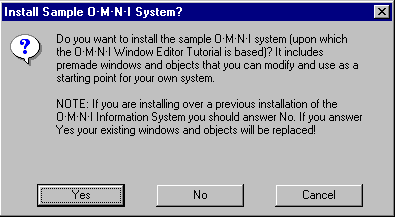
Figure 1
WARNING: If you're simply installing O·M·N·I to upgrade a version that
already exists on your system, you should select No. If you select Yes—your
existing objects and windows will all be overwritten!
Editing Your First Window
Once O·M·N·I is fully installed (along with the "Sample O·M·N·I System" described above) and you have run your Configuration Utility, double-click on the "Window Editor" icon in Program Manager (or from your Windows 95 Start menu) to run it.
When the "O·M·N·I Window Editor" comes up on your screen you'll see a toolbar and two windows in your main work area. You may click-and-drag these to any position; the windows are also sizeable. For practical purposes, position the toolbar on the left and the two windows on the right to leave your work area open in the middle of your screen.
As you follow the instructions below, keep in mind that at any time you may add, change, or delete any of the "sample" system's objects or windows. For the sake of this tutorial, it is probably a good idea to practice some of the procedures covered here . . . before you start saving changes to anything.
Tip:
To close any window you are working on in the Window Editor without saving changes, select Close Window (Ctrl+C) from the File menu (or double-click on the the window's control box). The following dialog will appear on your screen:
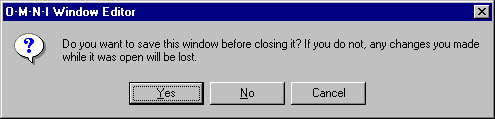
Figure 2
By selecting No, your changes will not be saved, and the next time you open the window up on your screen, it will appear exactly as it originally did (the first time you opened it.) Of course, if you do wish to save your changes, you may do so by selecting Yes.
NOTE: You may actually open more than one window at a time in the Window Editor. Be careful that you select the actual window you want whenever you close a window.
Getting Started Using the Window Browser:
1. Click on the down arrow in the "Window Browser"
window. This field displays the window groups
(their names are already created for you) in which your
windows may be organized categorically for quick and easy
reference.
IMPORTANT: As you go through these instructions, please keep in mind that any time you change the name of a window group, a window, an object group, or an object—there are other procedures in the Editor where these changes must be entered also . . . particularly, setting commands and loading objects (including text objects, and tree-structure objects). Incidentally, this also applies to message board names, file area names, etc. Until you are completely familiar with the Editor, you should probably use the names that are already provided (in both the Window Browser and Object Browser).
2. Select the window group "Main System" from the field.
Press Enter. The names of all the windows included in this
group (again, their names were created for you) will
appear in the field below—in this case, there are two:
"Main Menu" and "Startup."
NOTE: The names used in both the Window Browser and Object Browser are for your own internal use and reference only. You create the actual titles (or, rather, "caption text") for your windows' title bars elsewhere in the Editor. This design option will be covered later.
3. From this list, highlight the window called "Startup." (We've picked this one to work on first simply because it's the first window users see on their screens when they log on to your system . . . and it's a relatively simple window to start with.) Press Enter.
You'll notice that a version number for the window—the date and time it was created to the second—appears directly below the field. The Editor automatically "stamps" a new version number (time-based, to the second) every time you save a window you've worked on; once you copy it to the O·M·N·I Server—that is, overwrite the old version—O·M·N·I will recognize any old version a user might still have when they call in with O·M·N·I Term and automatically update it. (What they see is a brief "Updating Windows" session right after they've connected.)
ATTENTION: At this point, please note the plus
(+), the angled arrow, and the minus
(-) buttons to the right of the window group
field. Pressing any of these displays a dialog box for
adding, renaming, or deleting a window group,
respectively. Compare these to the Add,
Name, and Remove
buttons at the bottom of the dialog box; these function
exactly the same way but pertain to specific windows within
a window group. The Copy
button allows you to copy a listed window to either the
same or another window group. (You can't duplicate
window groups, however.)
You will use these buttons once you start categorizing
and naming your own windows and window groups later on.
4. Now press Edit (or double-click on the selected item). The "Startup" window should instantly appear in the center of your screen. Don't click anywhere in this window yet. (The window, for all practical purposes, is not entirely functional inside the Editor application anyway; it's essentially a "picture" of a window—to which you set functional commands and export to your Server once it's designed the way you want it.) Using this "template," you can begin performing the basic tasks of the O·M·N·I Window Editor and design the first window that your users will see when they call in to your multimedia online service.
Selecting Elements for Your Window:
1. When the "Startup" window first appeared, you probably noticed that the blank bar across the top of your screen suddenly changed; you should now see two (drop-down) fields followed by a lookup button (or another field, depending on what is selected). The first field designates all the modifiable elements that were used to create this particular window. Incidentally, these elements were pre-selected for you using the "Element Palette"—which will be explained later.
Click on the down arrow of the first field to see the list of all the elements which compose the "Startup" window now on your screen.
2. Now, click on any item in the drop-down list to see how that element is defined in the window itself: Sizing handles appear around each element in the "Startup" window as you select it (except in the case of "Window," because the window itself is already "defined" by its own border—i.e., there are no other definable elements outside it).
Again, don't click anywhere on the window just yet.
3. Each element also has a set of its own unique design properties. You may view the properties for any element selected in the first field by clicking on the down arrow in the second field . . .
For example, with the "Startup" window on your screen, select "Button1" from the list of elements. Notice that the Enter BBS button is the element defined (by sizing handles) inside the "Startup" window. Next, click on the down arrow in the second field and you'll see all the properties that apply to how the element "Button1" will look on your screen. Actually, these properties pertain to any button element you create using the Window Editor (for example, a "Button2" or "Button3"). With a few exceptions, design options for any common element, such as "buttons," are exactly the same.
4. This can actually be demonstrated by comparing the lists of properties for "Panel1," "Panel2," and "Panel3" from the element list for the "Startup" window. You'll have to scroll to see all of the properties, but you'll find that they're exactly the same for each panel.
NOTE: You will actually find some of the same
properties shared between various uncommon
elements, as well. In fact you'll notice several shared
between "Button1" and "Panel1."
5. Now, randomly select (click on) various properties in the second field and watch how things change in the field to the immediate right of it.
This third field lets you assign specific values to any given property you've selected. For the sake of this quick-start procedure, we're not going to cover all of them here (a complete description of all properties and their value options are provided with your other documentation). You should get a fairly good start on how value options work, however, simply by working with the objects and windows already available to you.
6. Now we're ready to begin manipulating and editing some
of the elements inside the "Startup" window. Again, at any
time, if you happen to change anything in the window that
you do not wish to save (i.e., you want to restore things
to the way they were when you first opened it), you may
select File +
Close Window
(Ctrl + C) from the menu bar. This closes the window
without saving changes. You may reopen it by selecting it
then pressing Edit in the "Window
Browser" window [as described above].
7. Likewise, you may save changes to any window that is
open on the screen by selecting File +
Save Window
(Ctrl + S) from the menu bar. For the time being, however,
let's keep experimenting without saving any changes.
Editing Your "Startup" Window:
Now that you're familiar with the "Window Browser," you may view any window in the listed window groups by first selecting it then pressing the Edit button. (Again, you may also double-click on any selected window in your listing to open it.) We'll show you how to create new windows and window groups later on—after you've had a chance to practice using elements and properties in some of the windows already available to you. (Sometimes learning "backwards" is the quickest way to get things done!)
Once again, we'll be working with the "Startup" window. So, if it's not already on your screen, open it from the "Window Browser" by selecting the window group "Main System" and the window named "Startup" then pressing the Edit button [as described above].
The "Startup" Window's Elements
The following hands-on demonstration is intended to
familiarize you with how elements may be put together to
create a simple window. The actions and values given here
were randomly selected (for the most part) and in no way
mean to suggest that this is the way your own "Startup"
window should be designed. Hopefully, this demonstration
will give you a clear picture of how the window was
originally constructed and start helping you generate some
fresh new ideas of your own. So, let's begin:
1. Drop down the elements list for the "Startup" window (in the first field) on your tool bar and select "Window" if it's not already selected. Click on the down arrow in the second (properties) field and select "Background Color." Now, click on the lookup button displayed to the immediate right of it. When the "Select Color" window appears, drag it to the top left of your screen so you can see a bigger portion of the "Startup" window.
2. Click on the last (dark purple) color box in the Basic Colors field. You will notice that the two color sample fields below changed instantly from gray (the pre-existing color) to the new color you selected. Also note how the first field shows the actual color you selected . . . and the second field shows a zoomed-in view of how the pattern of that color is actually "dithered" on the screen.
3. You may have noticed that the color bars on the right changed value also. Slide the button—or click on the up/down arrows—on any one of these color bars and observe how the color (and dithered pattern) changes in the color sample fields.
This simple demonstration shows, among other things, how easy it is to achieve exact color values for both background and text color in the O·M·N·I Window Editor!
4. Now, click on the purple color box again (to return things to their original values). Press the Ok button. The "Select Color" window will disappear. Observe the "Startup" window. The purple area (in the background) represents the basic window upon which all the other elements were positioned when the window was first designed. (Its original color was, of course, gray.)
5. Select "Panel1" from the elements list. Drag the bottom-middle sizing handle in the "Startup" window slowly upward and release it when about an inch of yellow is showing underneath it. Now drag the top-middle sizing handle downward until about a half-inch of yellow is showing above it. You just resized Panel 1 (and its background color is, of course, white).
IMPORTANT: If you select the
"Fixed Location"
property for any sizeable element, you are given the
option of whether that element will be sizeable as you
work on it or not (i.e., remain totally fixed the way it
currently appears in the window). This lets you avoid
accidental position changes for elements you don't want
moved while you're working on another element in a
window.
As you were resizing the panel, you also may have noticed the numbers change in the two boxes at the right end of your tool bar: In the first box, the x and y variables represent the panel's location (distance in pixels) from the top-left corner of the window. (You may adjust these distances precisely by utilizing the "Left" and "Top" properties.) Panel size is represented in the second box—w being the total width of the panel (in pixels) and h being its total height. (You may adjust these precisely by utilizing the "Width" and "Height" properties, respectively.) Dimensional properties, such as these, always refer to the internal, usable dimensions of a window.
6. Now (just to be different), click anywhere in the yellow area—which happens to be Panel 3. Notice that you didn't have to go to the elements list to select "Panel3" because clicking on the actual panel accomplished the same task (you'll see it selected now in the elements list too, by the way). You may select pre-existing elements either way in the O·M·N·I Window Editor.
7. Next, drag the bottom-left sizing handle of Panel 3 to the right and release it when it's about even with the left edge of the gray panel below it. Likewise, drag the bottom-right sizing handle until it's even with the right edge of the gray panel.
You now have in full view all the elements contained in this window. Please go to the elements list . . . click, select, and compare!
NOTE: In the elements list for the "Startup" window,
you may notice that there is a
"Picture2"
and
"Picture3"
. . . instead of a
"Picture1"
and
"Picture2." Sorry, that was not intended; things just
turned out that way when the "Sample O·M·N·I System" was
created.
8. Now you know which elements were selected for the "Startup" window . . . and a clue as to how they were used to create the window as you first saw it. (Of particular note is the way gray background color was originally selected as a value for the "Window" element so that the other four gray elements in the lower half of the window could blend "invisibly" into it!)
Next we will examine some of the properties (as well as
their values) which were originally selected for
the various elements in the "Startup" window. First,
restore the window to its original form by selecting File
+
Close Window
(Ctrl + C) from the menu bar then pressing Edit
in the "Window Browser" window.
NOTE: If you happened to actually save any changes you made to the "Startup" window (whether by accident or intent), you'll have to improvise a little here.
Selecting Properties & Value Options
The following exercises demonstrate how easy it is to assign properties—and specific values to those properties—to selected elements using the Window Editor. Again, for the sake of quick-starting your system, we're going to jump around a bit and only the most important examples will be given focus . . . with the hope that you will soon have sufficient direction to continue editing and designing your windows on your own.
1. Select "Panel1" from the elements list. Drop down the properties list for this element and select "Name." The name "Panel1" should appear in the value field. Highlight it (by clicking on it). Now, replace this text by typing in the name "BBS Name Panel" then press Enter. Notice that this new name has replaced "Panel1" in the elements field.
HINT:
"Panel1"
is actually the default name assigned to this element
when it was first added to the "Startup" window
utilizing the Panel button on the "Element
Palette" (floating toolbar). All elements are
automatically given a default name when they are first
selected in this way. (The "Element Palette" will be
covered later.)
This exercise demonstrates how O·M·N·I actually allows you to change the name of a listed element if you feel you need to be more descriptive or clear about what that element is assigned to do. This applies to any listed element displayed in the first field of your tool bar—with the exception of "Window": If you recall, the only place you can rename a window is in the Window Browser [see the section Getting Started Using the Window Browser above].
2. Now, drop down the properties list again and select "Caption Text." Notice that in the value field to the right, the text message "Your BBS Name" appears. Highlight this text by clicking on it, then type in the name of your online service.
Notice that your new text message is instantly entered into the BBS Name Panel in your "Startup" window . . . as you type. This is a very important feature: O·M·N·I allows you to instantly see the changes you make while editing a window in the Window Editor!
3. At this point, you may experiment with the various "Font: . . ." properties in your properties list for the BBS Name Panel. Here you should become more familiar with "True" and "False" value options, which you select from the values field—essentially to turn a specific property on or off. For example, select "Font: Bold" from the properties list then "False" from the values field, and you'll "turn off" the bold typeface in your BBS Name Panel (returning it to the default non-bold typeface).
You'll find that "True/False" value options are available for many other properties in the O·M·N·I Window Editor, as well.
HINT: Go ahead and experiment with different type
designs for your BBS Name Panel. By selecting the "Caption
Alignment" property, you may choose from options in the
values field to position your text wherever you want it
inside the panel. "Text Color,"
of course, lets you determine the color of your text.
You should also be aware that, whenever you specify a font style for your caption text, it must be a font that is also installed (or is very likely to have been installed) on the user's system. If it is not installed on the user's system, the font style they see will automatically default to a Windows system font (such as Arial) instead. [See your complete Window Editor documentation for some creative alternatives to specifying "design text" and message displays without using the "Caption Text" property!]
4. "Bevel . . ." and "Border . . ." properties let you determine how the border around your BBS Name Panel will look. A number of value options are available; sample them by clicking on each one individually and observing how it looks in the panel. (Compare these properties to the "Window Border Style" property under the "Window" element.)
5. You may apply the basic properties covered so far to any selected panel element. With so many design options available, you can customize, add caption text, and position panels anywhere you want inside a window. Panels can also either stand out or blend into the background—if, for example, you want to reveal just caption text. (Which is the case in "Panel3" of the "Startup" window—select it and see!)
You can also assign "hint text" to a panel (as well as to some other elements); this is a simple message (usually a prompt or reminder to a command) that's displayed in a pop-up message box, whenever you position your mouse anywhere on the panel. This property more often pertains to buttons, however—so let's select "Button1" from the elements list for the "Startup" window to see how it works.
6. Drop down the properties list for Button 1 and select "Hint Text." The text message '"Click" to begin using O·M·N·I Online.' should instantly appear in the values field on your tool bar. Notice that it also appears in the message bar at the bottom of your screen, whenever you point your mouse (anywhere) on the Enter BBS button in the "Startup" window!
If you want, change the text in the values field now to reflect your own system's name.
7. Now, select "Caption Text" from the properties list for Button 1. Entering or editing text here works exactly the same way as it did for "BBS Name Panel." But now, in the values field, notice the ampersand (&) in front of the text message "&Enter BBS."
With caption text, any time you wish to assign a shortcut Alt command to a letter in a word, you place an ampersand in front of the letter—with no spaces between. This (as can be plainly seen in the caption Enter BBS in Button 1) also results in underlining that letter in the actual displayed text.
HINT: If you happen to have two separate ampersands in the same caption, O·M·N·I defaults to the last one in the alpha-numeric string (indicating the character directly after it). If you want to actually use an ampersand somewhere in your text message, enter two of them consecutively (with no spaces between) and only one will appear in your displayed text.
To make the shortcut Alt + underlined letter command actually work, however, you must select "Commands" from the properties list and set some values (covered next).
8. Only elements with "Commands" listed as one of their properties can actually have shortcut Alt commands associated with a specified "Caption Text."
Drop down the properties list for Button 1 and select "Commands." Press the lookup button to display the "Set Command" dialog box. The options presented under the Command tab allow you to assign a specific action to the Alt + underlined letter command which you essentially "activated" by utilizing an ampersand as described above. A few of the more basic command settings are explained below:
Current Window: In this field, you specify what action you would like the current window to take after you've executed the command. If you select "Normal," the window will simply remain on the screen. If you select "Unload" (as is the case with the "Startup" window), the window will shut down and disappear from the screen. If you select "Minimize," the window will merely be minimized.
Action:
Once you've decided what will happen to the current
window when the command is executed, this is the list of
options you choose from to determine what the primary
action will be. If all you wanted to do was specify an
action for the current window, however, you
would simply select "[None]."
From the wide list of other options, you may specify (for example) "Log-off / Hangup," "Show E-mail Center," or "Enter Chat Area" to activate any one of these actions directly on command. But if you specify such options as "Display a Window," "Show File Area," or Show Message Board," you must also specify exactly which one you're referring to in the next two fields below.
NOTE: File area and message board commands are handled quite a bit differently than window display commands. They'll be covered fully in the "Advanced Editing Procedures" section below.
In the case of the "Startup" window, "Display a Window" is the primary action specified. You designate the actual window you would like displayed in these next two fields.
Window Group: This is where you select the name of the window group (as it appears in the Window Browser) which contains the actual window you want to display after the Alt command is executed.
Window: This is where you enter the name of the window (exactly as it appears in the Window Browser) that you want displayed on command.
HINT: Therefore, after entering Alt + E (or actually pressing the Enter BBS button!) from the "Startup" window—the window that would follow (after it unloads) would be the "Main Menu" window from the "Main System" window group.
In the Security Level & Locks field under the Security tab of the "Set Command" dialog box, you may enter a numeric security level or alpha-numeric "keywords" [see Section 2.1.3.3—"Specifying User Access & Security"—in O·M·N·I User's Manual #2: Configuring & Managing Your O·M·N·I Online Information System] to allow limited access to specific windows, file areas, or message boards. You also have the option of displaying a security message when a user is denied access, simply by checking the appropriate box beneath this field.
[See your Window Editor documentation, User's Manual #4, for complete instructions on how to set the many other commands available in the "Set Command" dialog box.]
9. Next, we'll take a look at a simple way that icons—as objects—may be referenced and used for "picture" elements by utilizing the Object Browser. In the process, we'll give you your first look at how the Element Palette is used to create new elements in a window! We'll indirectly examine how the pointing-finger pictures in the "Startup" window were selected . . . by specifying an entirely new picture: the O·M·N·I icon.
But first . . . let's take a quick look at the "Select Picture" dialog box, because this is where you'll be doing most of the work for this exercise. Select "Picture2" from the elements list and "Picture" from the options list, then press the lookup button on the right. The "Select Picture" dialog should instantly appear on your screen.
10. Make sure that in the Object Group field, "SCO - Icons and BMPs" is the object group selected. Next to that, in the Object field, make sure that the "Finger - Point Right" icon is the object selected. (Both of these fields represent what is already listed in the "Object Browser" window.) The object itself may be seen in the upper-left corner of the large display area above.
You may repeat this process for "Picture3" in the elements field of the "Startup" window, if you want. (This will lead you to the "Finger - Point Left" icon that's selected.) You may also examine the objects listed in the Objects field of the present dialog by selecting them individually from the list and viewing them as they appear in the display area above.
To restore things to the way they were, press Cancel when you're done.
About the Object Browser
Like the Window Browser, the Object Browser in the Editor lets you access and manage
all the objects that you'd like to make available to your O·M·N·I Information System.
Because O·M·N·I uses object-oriented communications, you not only have the advantage
of greater design flexibility (objects can contain many forms of data, including bitmaps, metafiles, icons, tree structures, lists, and sound wave files) . . . you have a tremendous advantage in the amount of space that's actually required to store your object files.
For example, if you have a bitmap you'd like to have appear in more than one place in
your system—turn it into an object. Then, any windows which display that bitmap only
need to reference the object and do not have to contain an actual copy of it.
Perhaps the biggest advantage of this is that data which is reused more than once in your
system only has to be sent to your user's computer one time! Once it's been sent the first
time, it won't be sent again unless its version number has changed. (This would happen in
the event you either changed the object's contents or introduced an entirely new object.)
The Object Browser makes it easier to organize the object files you want to use specifically
for your system. To achieve this, the "Object Browser" window works very much the
same way as the "Window Browser" window [described above]. Each object goes inside an "object group" (just as each window was assigned to a "window group"). You can add as many as 255 objects to a single object group, and you can add as many object groups to your system as you want.
A number of objects have already been made available to
you in the Object Browser.
These are the objects contained in all the windows which were made available to you in the "Sample O·M·N·I System."
Referencing an Object
In this section, we'll continue the exercise from above by adding a new picture element to the "Startup" window and referencing an icon object for that picture. You will also be introduced to the Element Palette for the first time.
1. With the "Startup" window on your screen, position your mouse over the second icon in the top row on the Element Palette (the desert cactus icon) then click your left mouse button. You will notice a blank element appear—defined by sizing handles—in the upper-left corner of the "Startup" window. You'll also notice that "Picture1" is the element now defined in the elements field.
REMEMBER: In the elements list for the "Startup"
window, "Picture2" and "Picture3"—instead
of "Picture1" and "Picture2"—were the
pictures originally specified. This was not intended;
things just turned out that way. Because of this,
O·M·N·I now simply defaulted to the "missing" picture
element . . . calling it Picture1."
Select "Picture" from the properties list and click the lookup button. The "Select Picture" dialog box will appear on your screen.
2. Now select "SCO - Icons and BMPs" from the Object Group
field . . . and "OMNI Icon" from the Object field.
The O·M·N·I icon should now appear in the upper-left
corner of the display area. Select Ok.
The O·M·N·I icon should now appear inside Picture1 of the "Startup" window.
NOTE: This is the basic way you add a "graphic" to any window. For more complete information, refer to Section 4.2.2—"Element Descriptions & Their Specific Properties"—of your O·M·N·I Window Editor user's manual (#4). Look at the element description and "Picture" property description for each element under which it appears to find out which image formats are supported by which elements.
3. Now select the "Height" property for the "Picture1" element and enter its value as "32." Hit Enter. Do the same thing with the "Width" property. As you can see, these values are reflected accordingly in both the actual size of the element as it appears in the "Startup" Window and the far-right (element size) field on your tool bar.
You may now position Picture1 wherever you want it in your window by simply dragging and dropping it.
HINT: You may also want to remove its border and specify a background color to match the one where it's placed; this will make it appear as an icon standing alone.
We are now finished working with the "Startup" window. You may either close it or start working on some simple window designs of your own. For the sake of this tutorial, we will continue exploring the O·M·N·I Window Editor by working with more advanced properties and options—including those require for setting up your file and message board areas.
Advanced Editing Procedures
Up to this point, this tutorial has covered the basic procedures for designing windows and setting simple commands using the O·M·N·I Window Editor. Next, you'll learn how to work with some of the more advance options available to you—particularly those involving the special commands required for file and message board areas which enable your users to access information in your database . . . from virtually any windows you create . . . without your having to duplicate it!
These, along with several other advanced editing procedures, are covered below.
Setting Up File Areas
In this exercise, you'll learn how to set up file areas so that users may access them when they log on to your system. There are two ways your system's interface may be designed for this—and you may use either or both, depending on your needs: You may either have users access file areas and respective files from a list (for example, using a file area tree) or you can have them click command buttons to access file areas.
List Method
Using the "list" method, you have the advantage of utilizing one main window where file areas (and their respective files) may be accessed by selecting items from a single directory tree . . . in much the same way as it's done in your Windows File Manager. (However, you're not limited to just one window—you can actually have as many as you want!)
If you decide to use this method, you must first create your file area tree (with a few set commands) . . . as an object to be referenced in an element of your window ("TreeView1," for instance). You utilize the Object Browser for this.
IMPORTANT: When first creating your file tree object, you should pay close attention to the way you originally set up your file areas in the Configuration Utility (assuming, of course, you've already done so). You'll probably find that it is far more efficient to organize your file tree by following the basic pattern of organization you started with there (or visa versa). By maintaining accurate, well-organized links to your file areas, you'll also be avoiding potential problems when operating your O·M·N·I Server!
Once you've created your file area tree, you link this object to the window element where you plan to display it. Then you set the commands which link your system's user interface at this location to the actual file areas where your files are stored. You utilize the Window Browser (and File Area Control Element) for this. Let's begin:
Editing Your File Tree
1. In the Object Browser, select the object "Main File Area Tree" in the "File Areas" object group. The "Edit Tree Structure Object" dialog will appear on your screen. Press Add. The message "{NEW ITEM}" should appear highlighted in both the Tree Structure field above . . . and the Caption field below.
2. In the Caption field, enter your first main file category (any descriptive heading up to 255 characters long) exactly the way you want it to appear to your users in your directory tree. Your entry will appear—highlighted in the Tree Structure field—as you type. Now press Add again, and enter a sub-topic heading beneath your first entry. Select >> to indent it. This is the basic procedure for adding (and indenting) lines in your file tree!
NOTE: You may navigate, move, and manipulate directory tree entries using the appropriate buttons in the "Edit Tree Structure Object" dialog box. (A little experimentation will quickly show you how.) Also, the Preview button allows you to actually test your tree structure before committing it to memory.
3. You may now complete the rest of your file tree by following this procedure to list all your main file categories and their sub-topics. Remember that you may, of course, expand your tree structure—using more than one level of indentation—to organize your sub-topics.
Setting File Tree Commands
Once your file tree is organized the way you want it . .
.
you must set commands for each line that you plan
to use specifically for accessing a file area—and retain
the default settings (already preset for you) for
any lines you do not plan to use for this. To
begin:
You may either double-click on a line or press the Set Command button to make the "Set Command" dialog box appear (for each selected line). Assuming you have as your first three entries in your file tree . . . a main file category, followed by a single-indented sub-topic, followed by a double-indented (final) sub-topic . . . the following procedure would be used to make your file tree work essentially the same way as the directory tree in your Windows File Manager:
1. First, select the double-indented (final) sub-topic
and double-click on it. (We've chosen this line to set
commands to first, because this is the line your users
will eventually select to actually enter the file area
indicated.) For the sake of simplicity, we'll assume that
the only "action" you wish to specify is to display
the actual file area. Therefore, in all but the last
field of the "Set Command" dialog box which appears, make
sure that only the default settings are selected (i.e., Current
Window:
"Normal";
Obj. Group - Sound:
"[None]");
Object Sound:
blank).
2. Now, drop down the list of options in the Action field and select "Show File Area." A set of additional fields will immediately be displayed in the "Set Command" dialog box. Here you may specify the actual file area you want to open. If you have properly set up your File Areas in the Configuration Utility, you may do so by simply selecting the appropriate options from the drop-down lists in the File Area Group and File Area fields. (These appear exactly as you created them in the "File Areas" dialog box—of the Configuration Utility—which is why it's wise to keep track of how you entered things there before you start creating your file tree object!)
Once you've selected the file area you wish to show, you may specify (in the Security Level & Locks field below) the security level and/or keyword(s) which allows users to actually access the area . . . and (in the check-box below that) whether or not you want to display a message whenever a user is denied access.
REMEMBER: Security levels which determine whether or not a user may upload or download files (once they've even accessed a file area) are set separately in the "File Areas" dialog box of your Configuration Utility.
Once your desired options are correctly specified, press Ok and all will be saved.
3. Moving backwards, next select the single-indented sub-topic in your file tree and double-click on it. After confirming (i.e., retaining) the same default settings as specified in the above example, select the default setting "[None]" in the Action field of the "Set Command" dialog box. With this indicated, all that will happen when a user clicks on your sub-topic in the file tree is . . . the next sub-topic (indent level) will be expanded right below it (in this case, the final sub-topic for which we already set the "Show File Area" command).
Once your desired options are correctly specified, press Ok and all will be saved.
4. Again moving backwards, repeat the above step for your main file category listing (the first line of your file tree).
Using this procedure, you may set commands for your entire file tree. Just keep in mind that, regardless of how many indentation levels you use, it is the final sub-topic level which generally receives the "Show file Area" command. If you set your commands properly, your users should be able to quickly click through your listing, expand your file tree, and ultimately enter any file area you allow.
5. When you are satisfied that your file tree is designed the way you want it, with all the appropriate commands properly specified, press Ok to exit the "Edit Tree Structure Object" dialog box and to save your file tree as an object.
To view your file tree as it will appear to your users—as well as to actually test how it expands—open the "Main Menu" window in the "File Areas" window group of the Window Browser. This is where you'll also begin the next important step of this exercise . . . so open the "Main Menu" window now.
Setting Commands for Your File Areas "Main Menu" Window
1. With the "Main Menu" window (from the "File Areas" window group in the Window Browser) open on your screen, you should now be able to view your file tree just as you created it in the Object Browser. (Please note that the element name for your file tree object in this window—which includes the whole panel—is "TreeView1.") By clicking directly on each folder icon, you should be able to expand your file tree just as you do in your Windows File Manager (with 255-character [max] topic descriptions appearing instead of the standard eight-dot-three descriptions used by Windows 3.x).
You will notice, however, that nothing happens when you click on a page icon—which represents the actual file area to be accessed. (These should appear at the last indentation level under each main file category.) This is because you cannot actually execute commands from the Window Editor; you must use Local Login for this. But even with that it would still not work, because—even though the "Show File Area" command has been set, with the proper file area specified—O·M·N·I still does not know how that file area is to be displayed!
2. This is solved by using the File Area Control Element, represented by the disk icon located in the upper-right corner of your "Main Menu" window. This unique (and powerful!) little device acts as an interface between any windows you create for displaying file area information . . . and the database in O·M·N·I where your file area information is actually stored. This allows you to duplicate your file area listing in any number (and variety!) of windows that you want . . . without the need to duplicate database information for every window. (This also pertains to the "File Listing" and "File Description" windows in your Window Browser—as well as any others you wish to specify in your "chain of command"—which will soon be demonstrated.)
This offers you tremendous flexibility in window design . . . without sacrificing unnecessary storage space on your computer and without wasting valuable time duplicating data entries!
Also, the disk icon is only visible on the screen while working inside the Window Editor; it is not visible to your users online. (That's why it's sometimes referred to as the hidden element.) Still, O·M·N·I is programmed to automatically detect any "hidden" control element that may be present in a window—including, as you'll find, those for message boards.
3. Now, select the disk icon by clicking on it. In the element field you'll notice that it is referred to simply as "FileArea." (This designation [as the default "Name" property] pertains more to the current function—or role—of the Control Element than its actual name. The Control Element feature, as you'll discover, plays a similarly important role in setting up your message board areas. There the hidden element is referred to simply as "MessageBoard.")
Next, from the properties list select "Set FA Commands" (this is the only command property we'll be using for the File Area Control Element in this particular window). As you can see in the "Set Command" dialog box, the specified Action is "Display a Window"—and the window to actually be displayed is the "File Listing" window from the "File Areas" window group [see your Window Browser].
If you wish to add optional sound commands or specify security levels for accessing the next window (i.e., "File Listing"), you may do so now. When finished, press Ok to save your present settings and to close the dialog box.
4. Now, whenever a user clicks on a listed item in the file tree of this window, O·M·N·I will not only execute the commands you specified previously for your file tree object (i.e., "Show File Area") but also those specified in the "Set FA Commands" property of the Control Element!
This is essentially what happens . . .
1) O·M·N·I carries out the "Show File Area" command and sets the current file area to the one that the command specified; 2) O·M·N·I looks for a File Area Control Element on the same window; 3) if one is found, O·M·N·I executes the commands specified in the "Set FA Commands" property—which, in this case, should then load the "File Listing" window.
After that—O·M·N·I proceeds to carry out the commands you
set for the "File Listing" window . . . to present the
actual list of files from the selected file area.
How
these commands are set is covered in the next example.
Setting Commands for Your "File Listing" Window
1. In the Window Browser, open the "File Listing" window from the "File Areas" window group.
To demonstrate how O·M·N·I determines which file list to actually display (i.e., from which file area, or "FA")—click on the disk icon and select "Element FA List" from the properties list. You'll notice that "ColumnListbox1" appears in the options field to the right.
When the "File Listing" window is loaded, O·M·N·I will again look for the hidden disk icon—which, in this case, tells O·M·N·I to display the actual list of files (or "FA List") from the file area selected in "TreeView1" of the File Area "Main Menu" window.
HINT: By also selecting the "True" option for the "Titlebar FA Name" property, the name of the currently selected file area will be displayed in the title bar!
2. Once the "File Listing" window is displayed, your user may now download any file listed (without necessarily viewing its text description first) by simply selecting it and clicking on the Download button. Here's how the commands are set for this:
Notice that the "Element FA Download" property for the disk icon in this window is set to "Download Button." With this specified, O·M·N·I will know that once a file is selected (from the "FA List") and the actual "Download Button" is pressed, it should immediately start to download it (as the present "FA Download").
You'll also notice that the Action specified (in the "Set Command" dialog of the "Command" property) for the "Download Button" element, itself . . . is "[None]." This is because you don't want the Download button to execute any other kind of action; you simply want O·M·N·I to go immediately to the task of downloading. And once again, the disk icon has been assigned to take over for this!
3. From the "File Listing" window, your users also have the option of viewing the text description of a selected file (exactly as you entered it in the Description field of the "Edit File Information" dialog box in File Areas of your Configuration Utility) before downloading it—though the actual viewing of the description will be done in the "File Description" window (from the "File Areas" window group in the Window Browser). This window is accessed by selecting a file in the "File Listing" window then pressing the View button (or double-clicking on the file listing). Following is how commands are set for this:
In much the same way that commands were specified here for downloading—the "Element FA View" property for the disk icon is set to "View Button." With this set, O·M·N·I will know that when the actual "View Button" is pressed, the text description (or current "FA View") for the currently selected file (from the "FA List") should be immediately accessed and displayed as you originally created it in the Configuration Utility. A window, of course, is needed for this—specifically, the "File Description" window . . .
However, you'll notice that the Action specified
for the "Command" property of the "View Button" element
(just as for the "Download Button") is "[None]" . . . not
"Display a Window." The reason for this is that, in the
present order of things, the File Area Control Element
must be utilized to open the "File Description" window.
Therefore, with the disk icon selected, click on "View File Commands"—which is the correct property to use for this—then open the "Set Command" dialog box by clicking on the lookup button. You'll notice that the proper commands are already set to "Display a Window" . . . namely, the "File Description" window. (You may also choose to set sound commands and security levels at this time.)
Now, whenever a user presses the View button to see the description of a selected file, O·M·N·I will immediately open the "File Description" window with the appropriate text displayed. Next, we'll look at how commands for the hidden element are set for this window.
Setting Commands for Your "File Description" Window
The "File Description" window has been designed to provide a variety of information about a selected file, including file size, download time, and download count—along with the file description itself. Because this information should already be available in the File Areas database of your Configuration Utility (as a result of your entries there), the File Area Control Element may once again be used as a simple but powerful interface between this actual information and how you want it displayed.
With the "File Description" window (from the File Areas" window group in the Window Browser) open on your screen and the disk icon selected, you may examine the following partial list of properties—and their specified options—to better understand how such information may be presented to your users in O·M·N·I [additional options are described fully in User's Manual #4 of your documentation].
Property\Option: Action
________________________________________________________________________
Element Description\TextView1: The element in which the file description is to be displayed is "TextView1."
Element DL Time\Download Time: The element in which download time is to be displayed is "Download Time."
Element DL Count\Download Count: The element in which download count is to be displayed is "Download Count."
Element FA Download\Button1: The element which is to execute the download of the selected file (described in this window) is "Button1."
Element File Size\File Size: The element in which file size is to be displayed is "File Size."
Titlebar FA Name\True: The name of the current file area and selected file are to be displayed in the title bar.
Button Method
Before you may begin to utilize the "button" method for setting commands, you must first create the actual buttons in your windows which you'll want your users to press to access specific file (or message board) areas. Creating buttons will be covered in greater detail later; but for the time being, if you want to use this method you may create new buttons by selecting the "Button" icon (fourth icon, top row) on your Element Palette.
With what we've covered so far, creating new buttons
(and button captions) should be relatively easy. Setting
commands should be also. For a simple demonstration, do
the following:
1. Open the "Main Menu" window in the "File Areas" window group. Create a button and set the caption to indicate the name of the file area you want your users to access.
2. Select "Commands" from the properties list, then . . . simply set your commands just as you did for "items" in a list [covered above].
Setting
Up Message Board Areas
The procedure for setting up message board areas is exactly the same as described in "Setting Up File Areas" [above]. With few exceptions. For the sake of this "quick-start" tutorial, it is not necessary to go into further detail. (You may start by creating a message board area tree—just as you did a file area tree—by selecting the "Main MB Tree" object from the "Message Boards" object group in the Object Browser and proceeding as in the "Editing Your File Tree" section above.)
Creating Original Window Designs
Almost all of the procedures we've covered so far in this tutorial have utilized the pre-existing windows of the "Sample O·M·N·I System" in the Window Editor. After experimenting for a while with all the various elements and properties, you may feel comfortable enough to start creating new windows of your own. The Window element is the basic starting point for creating any new window.
To create any new window using the O·M·N·I Window Editor, you must first create (or select) a window group in the Window Browser, then press Add and enter a descriptive Name for the new window in the "Add Window" dialog box. When you select Ok the new name will instantly appear in the window listing beneath the currently selected window group in the Window Browser. To bring the new window element up on your screen where you can start working on it, highlight the new window name and press Edit. A "blank" window will appear in the middle of your screen where you may begin to specify properties and values, or add other elements of your choosing from the Element Palette [pictured in Figure 3 below].
The Element Palette
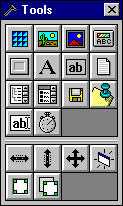
Figure 3
You have already had a chance to experiment with several elements selected from the Element Palette. You may add any new element to a window simply by selecting the appropriate icon. As you have learned, each element has its own set of properties for which you may also enter or select specific values.
Now, starting with some of the elements you've become familiar with in this tutorial, go ahead and start creating some new windows!
Obviously, there are many, many more design and command options available to you in the Window Editor than are covered in this tutorial. For complete and detailed instructions on the use of the O·M·N·I Window Editor, refer to O·M·N·I User's Manual #4: "Creating Objects & Windows for Your O·M·N·I Online Information System."
*