O·M·N·I Term User's Manual
Setting Up and Using
Your
O·M·N·I™ Term Client Software Application
CONTENTS
— Minimum System Requirements
— Prompting During O·M·N·I Term Setup
— Performing Modem-Communications Setup Manually
— Using Your O·M·N·I Term Dialing Directory
Logging On to an O·M·N·I System
— O·M·N·I Sign On
— Directly Dialing to Connect to a System
— Using the Internet to Connect to a System
— Getting Around Online
- Previewing Files (before Downloading)
- Setting the Size, Quality (and Speed) of Thumbnail Previews
- Downloading/Uploading Files
- Open File: Using the O·M·N·I File Viewer
- How to Chat
- How to "Whisper" Privately to Someone
- Managing Your Chat Sessions
- Entering and Creating Rooms
- Finding and Paging Users Online
— Disconnecting from an O·M·N·I System

About the O·M·N·I Term Client
Online software is the special software which enables callers to actually log on and access the different areas of an online system. This software not only handles the communications which allow you to connect and log on to the system, it determines what "interface" you will use—that is, what basic screen characteristics you will "see" and "move about in" online. (For example, plain DOS text, ANSI graphics—or windows!)
The online software that's used on the system's end is sometimes called "server" or "host" software, because it is the server (or host) computer on the system that you directly connect to with your computer.
The online software you use on the caller (or user) end is often called "terminal" (or simply "term") software, because your computer acts as one among perhaps many client terminals which may actually call and connect to the remote server.
If you've ever called a major commercial online information service, like America Online® or CompuServe®, the software you installed on your computer to call and connect to them was terminal software. In the same way, O·M·N·I Term is terminal software . . . except that you can use it to call and directly connect to any of the O·M·N·I servers now set up around the world!
Sometimes, all you actually need on the terminal end is your standard modem software or comm program—because the system you're calling may be set up using only simple text or ANSI graphics, as used in DOS. And most modem software is made to be compatible with this. In fact, most systems originally used text or ANSI because most computers operated under DOS—and there were simply few alternatives.
Today there are many alternatives . . . many different kinds of online software are available to online service operators which offer an equally wide range of capabilities, including windows-based operation!
When graphical "windows" were first introduced, computer users everywhere were suddenly treated to a more appealing and user-friendly interface in which they could just "point-and-click" their mouse. They called this the "graphical user interface" (GUI) because it is the graphics, windows, and buttons which "compose" the interface between the user and the operation of the software on their computer. In a windows-based multimedia online service, you see colorful, graphical windows in place of plain text and ANSI menus.
O·M·N·I Term is entirely Microsoft® Windows-based software—though you can still call almost any O·M·N·I system with your regular modem software or comm program and still connect, because O·M·N·I also allows standard ANSI Text connections on any O·M·N·I system you call! (In fact, that is how many users first get their copy of O·M·N·I Term—they download it from an O·M·N·I server with their comm program.)
In addition, you can also connect over the Internet using your own local TCP/IP connection, which can help you save on long-distance phone charges!
Minimum System Requirements
In order to get the best performance from your O·M·N·I Term software and to make your experience online as enjoyable as possible, you should be equipped with the following:
- 486DX/33 or faster computer
- Microsoft Windows version 3.1 or higher
- 9600 baud or faster modem (with a 16550AFN UART)
- 16-color VGA minimum (256 color-capable video card and monitor preferred)
- A mouse or other Windows-compatible pointing device
- Microsoft®-compatible sound card (optional)
O·M·N·I runs on Windows 3.1, Windows 95, Windows NT, and OS/2.
O·M·N·I Term Setup
Before you can make your first call to any O·M·N·I online information system using O·M·N·I Term, you must first complete your basic communications setup and make sure there is at least one entry in your dialing directory. In many instances, this will be the phone number—or IP (Internet) address—of the system you called to download O·M·N·I Term using your modem software or comm program [as mentioned above].
Whenever you run O·M·N·I Term, it will automatically check to see if everything is functioning properly and whether or not setup has been properly completed. If not, you will be prompted to perform the necessary steps accordingly.
This is exactly what happens immediately following installation. You will automatically receive a series of simple on-screen instructions with some special setup options which will allow O·M·N·I to do a lot of the work for you! (But you will also have the option of performing certain parts of setup manually, at a later time.) The O·M·N·I Term setup and prompting procedure following installation is described fully in the section that follows.
Prompting During O·M·N·I Term Setup
Immediately following installation, you will be automatically prompted with several easy-to-follow on-screen instructions and special setup options to properly complete O·M·N·I Term setup. While these instructions are easy to follow directly from your computer screen, each step of this prompting process is described in detail below:
Automatic Communications Setup
O·M·N·I Term can accurately determine what kind of modem you are using and what its optimum speed should be set at. It will then automatically perform the proper communications setup for you. At this point, however, you also have the option of performing this procedure manually, at a later time [see "Performing Modem-Communications Setup Manually" below] . . . but it is recommended for experienced users only. Select the present option you want by pressing the appropriate button in the "Automatic Communications Setup" dialog box that appears on your screen [Figure 1].
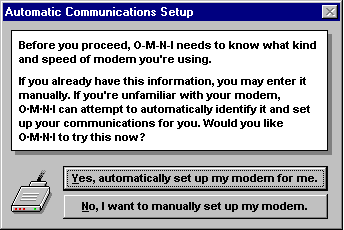
Figure 1
If you selected No... you may perform your communications setup manually at a later time; but you will also still have the option of running Auto Setup again using the "O·M·N·I Communications Setup" dialog box, if you prefer [described under "Performing Modem-Communications Setup Manually" below]. If you selected Yes... you will be alerted with the following message [Figure 2]. Follow the instructions carefully, then press Continue when you're ready.
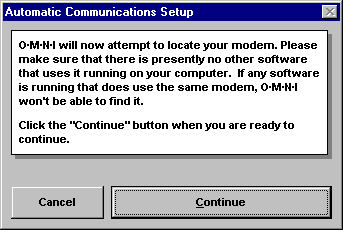
Figure 2
O·M·N·I Term setup will then proceed to locate your modem and make the proper communications settings for you. Once completed, the following instructions will appear on your screen [Figure 3].
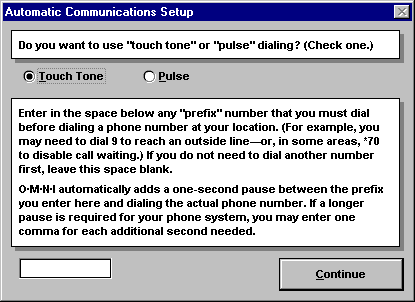
Figure 3
In this dialog box you may enter special phone settings to be performed automatically every time O·M·N·I Term dials a number in your phone directory—described as follows:
Setting Touch Tone or Pulse Dialing
If the phone line connected to your modem supports Touch Tone® dialing, make sure the Touch Tone option is checked. If it only supports pulse dialing, check the Pulse option. (If you're unsure about which of these services your phone line actually supports, call your local phone company to find out.)
Setting Prefix Numbers to Dial Automatically on
Each Call
If you must dial a prefix number before any number you call over the phone line that's connected to your modem, you can enter this number in the space at the bottom-left of the dialog box pictured in Figure 3. (This situation typically occurs in offices with multiple phone extension lines, where the prefix number "9" is often used.) O·M·N·I Term will then automatically dial the prefix number on every dial-up call you make to a remote O·M·N·I system . . . without having to enter it before every phone number in your dialing directory [for more information on making dialing directory entries, also see "Add Dialing Directory Entry" below].
This also applies to any number you might be required to dial in your area to disable your "call waiting" service—should you happen to have it on the phone line that's connected to your modem. (In many areas the prefix number "*70" is used for this.) It is recommended that you disable call waiting if you can, to better ensure smooth, uninterrupted connections.
Setting the "Pause" After a Prefix Number Is
Dialed
In many cases where a prefix number is required, the caller must also pause briefly after dialing it—for example, to make sure they've connected to an "outside line." O·M·N·I already adds a one-second pause automatically; but if more time is required, you may simply add commas (using no spaces) after the prefix number you've entered. Each comma you add equals one extra second of "pause" time after the prefix number is dialed.
Specifying More than One Prefix Number to Dial
Automatically
Should you happen to be in a situation where more than one prefix number is required before dialing the phone number to a remote O·M·N·I system, you may simply enter the prefix numbers—and commas, if required—in the proper sequence (using no spaces).
When No Prefix Number Is Required
If the phone line connected to your modem does not require a prefix number before dialing, simply leave the space in the dialog box blank.
Using Long-distance Call Prefixes
It is also recommended—for more practical purposes—that you do not use this option for entering long-distance call prefixes (such as "1" or "011") unless all the dial-up calls you plan to make using O·M·N·I Term require it (which is not likely). You should add long-distance prefixes directly to the phone numbers in your dialing directory instead.
Once you have finished entering all the necessary information into this dialog box, press Continue to allow O·M·N·I to complete modem setup. O·M·N·I's progress will be displayed on your screen, with details similar to those shown in Figure 4 below:
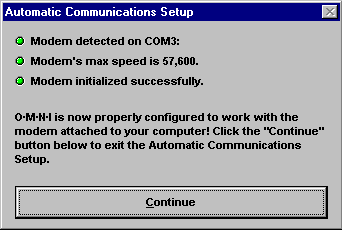
Figure 4
Once your modem-communications setup has been successfully completed, you may proceed by pressing Continue.
Add Dialing Directory Entry
Before you can call and log on to any O·M·N·I system using your O·M·N·I Term client software, you must first enter the system's dialing information into your O·M·N·I Dialing Directory. If you do not have any entries, you will be prompted whenever you try to run O·M·N·I Term. This is what happens following installation—right after you have completed Automatic Communications Setup [described above].
At this point, the O·M·N·I Term tool bar [Figure 5] will appear on your screen, along with the "O·M·N·I Sign On" window [Figure 6] which—since you have not made any entries into your Dialing Directory yet—will display the message shown.
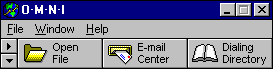
Figure 5
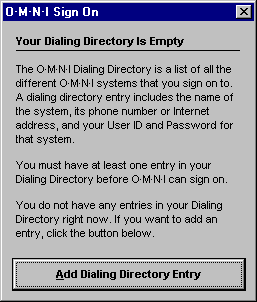
Figure 6
If you do not want to make an entry into your dialing directory at this time, you may close the window. You will simply be prompted again in the same manner the next time you run O·M·N·I Term. If you do wish to make an entry at this time, just click the Add Dialing Directory Entry button. This will display the "Add Entry" dialog [Figure 7] below.
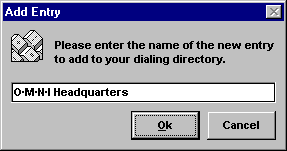
Figure 7
Entering the System Name
In the "Add Entry" dialog you must enter a name for the system you want to call. You may use any combination of characters, numbers, or punctuation up to 255 characters long. ("O·M·N·I Headquarters" is the system name used in the present example.) Click Ok to proceed.
This will display the "Edit Entry" dialog [Figure 8] with the name of the system you just specified shown on the title bar and in the System Name space—where you may still make changes to it if you want.
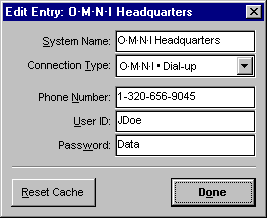
Figure 8
Entering the System Phone Number
If you plan to dial in to the O·M·N·I system directly with your modem, you should make sure that "O·M·N·I • Dial-up" is selected from the Connection Type drop-down menu as shown above [Figure 8]. Enter into the Phone Number space the phone number of the system exactly as you would dial it if you were calling from your location with a telephone (you may use hyphens, or spaces, if you want). If you already specified a dialing prefix number in the "Automatic Communications Setup" dialog box during modem setup [Figure 3] you do not have to enter it as part of the phone number here. [See "Automatic Communications Setup" for complete instructions.]
Entering an IP or Domain Name to Connect Over the
Internet
If you plan to use your O·M·N·I Term to access the system over the Internet (which is allowed by many O·M·N·I systems in the world—but not all) you should select "O·M·N·I • TCP/IP" from the Connection Type drop-down menu as shown below [Figure 9]. (Click the "down" arrow to view the drop-down menu.)
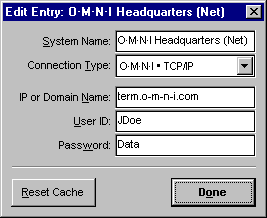
Figure 9
Just as with a system's phone number, you must get the proper IP address or domain name of the present system you want to connect to and enter it into the IP or Domain Name space exactly as it was provided. (The domain name for O·M·N·I Headquarters was used in this example. But you could enter the numeric IP address instead!)
Entering a Phone Number to Access an O·M·N·I ANSI
BBS
You may also use your O·M·N·I Term to dial directly with your modem to access an O·M·N·I system in ANSI Text mode (which is also made available on many O·M·N·I systems—but not all). To do so, you should select "ANSI Text • Dial-up" from the Connection Type drop-down menu as shown below [Figure 10]. (Click the "down" arrow to view the drop-down menu.)
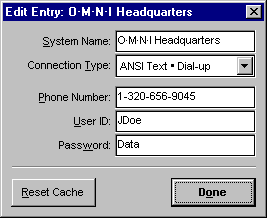
Figure 10
Enter into the Phone Number space the phone number of the ANSI system in exactly the same manner as described under "Entering a System Phone Number" above. In many cases, this will be the same phone number that's used for the "O·M·N·I • Dial-up" connection type of the present system. (In this example, O·M·N·I Headquarters may be accessed in ANSI Text mode using the same phone number that's used for making regular O·M·N·I connections and accessing the Windows interface using O·M·N·I Term.)
Entering a User ID
No matter what connection type you use, you should enter into the User ID space your preferred User ID, or "screen name." This can be any combination of characters or numbers (no spaces or punctuation) that may be used to uniquely identify you on the present system. On many systems, this is the only name that the system administrator will allow to appear online, such as when you are using message forums and chat/teleconferencing areas. (In the examples above, O·M·N·I user John Doe has entered "JDoe" as his User ID.)
If you do not wish to enter your preferred User ID at this time, you will be prompted to do so in the "Sign On" window before you log on. Should you attempt to log on without entering a User ID in the "Sign On" window, a message will pop up stating: "You have not entered a User ID to use. Do you want to create a new account?" If you select No, your sign on will be aborted. If you select Yes, the O·M·N·I Term will dial and sign you on to the system . . . where you will have yet another opportunity to enter a User ID and whether or not you want to save it in your Dialing Directory for future use [also see "Logging On to an O·M·N·I System" below].
Entering a Password
In the same way, enter into the Password space the special User Password that the present system should ask for if anyone else should try to log on with your User ID to use your account. Use any combination of characters or numbers (no spaces or punctuation) up to 255 characters long. (In the examples above, O·M·N·I user John Doe has entered "Data" as his User Password.)
If you do not wish to enter your User Password at this time, you will be prompted to do so (in the "Sign On" window) before you log on [see below].
Once you've finished entering all the correct information into the "Edit Entry" dialog box, you may proceed by pressing Done.
Performing Modem-Communications Setup Manually
The first time you install your O·M·N·I Term client software, you will be automatically prompted with a series of on-screen instructions which will allow O·M·N·I to determine your proper modem-communications settings [see "Automatic Communications Setup" above].
During this auto-setup procedure, however, you also have the option of performing your communications setup manually at a later time. Often, more experienced users of online communications software applications prefer to do it this way (or they may simply want to make adjustments to their communications settings later on) . . . but it is only recommended for more experienced users!
Communications Setup
O·M·N·I Term users should feel confident that their communications setup is configured properly after running the automatic communications setup [see section above] because O·M·N·I proficiently reads and configures your communications settings to the prescribed built-in factory settings of your modem.
However . . . if you are an experienced user and wish to try other settings which you (confidently) feel will maximize the effectiveness of your modem, you may manually perform—or make adjustments to—your communications setup at any time by selecting Communications Setup... under Options on the File menu located on the O·M·N·I Term tool bar [Figure 5]. This displays the "O·M·N·I Communications Setup" dialog box pictured below [Figure 11].
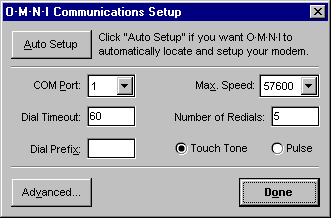
Figure 11
The following options are available for manually specifying the basic communications settings for O·M·N·I Term:
COM Port: COM Port
specified for your modem.
Dial Timeout: Number of seconds allowed for
remote O·M·N·I system to answer before your modem
redials.
Dial Prefix: [See Figure 3
for complete description.]
Max. Speed: Maximum baud
rate handled by your modem.
Number of Redials: Number of times the modem
should redial before hanging up.
Touch Tone: Check this option if the phone line
connected to your modem supports Touch Tone dialing.
Pulse: Check this option if the phone line
connected to your modem uses pulse dialing.
The following options are available for more experienced users who may have specific initialization and hangup strings (for example, in their modem manual) that they might want to try out for optimizing the performance of their modem communications with O·M·N·I. These settings may be accessed by selecting the Advanced... button in the "O·M·N·I Communications Setup" dialog box:
Init String: Initialization
string for your modem (or alternate).
Hangup String: Hangup string for your modem (or alternate).
NOTE: If you are not experienced enough to configure modem initialization and hangup strings, it is highly recommended that you run Auto Setup instead of attempting to manually configure your O·M·N·I Term communications settings [see next section below].
Once you've finished specifying the appropriate
modem-communications settings, press Done
to close the "O·M·N·I Communications Setup" dialog box.
You may return to this dialog at any time to make
adjustments to your settings as required.
Auto Setup (Optional)
You can always return to Automatic Communications Setup—at any time—and let O·M·N·I determine your proper modem-communications settings for you by simply selecting Auto Setup in the "O·M·N·I Communications Setup" dialog box [Figure 11]. (Remember, this is accessed by selecting Communications Setup... under Options on the File menu located on the O·M·N·I Term tool bar [Figure 5].)
You will then be automatically prompted using the same procedure and the same on-screen instructions as described in "Automatic Communications Setup" above.
NOTE: During Auto Setup, O·M·N·I reads and configures your communications settings to the prescribed built-in factory settings of your modem—so unless there is a problem with your modem, you should feel fairly confident that your communications have been configured the way your modem manufacturer originally specified.)

Using Your O·M·N·I Term Dialing Directory
Your O·M·N·I Dialing Directory is the primary tool used for storing the names, phone numbers, and Internet addresses of all the O·M·N·I online information systems (or BBSs) you wish to access. Generally, you must acquire this information either directly from the service you want to call or by some other "offline" means, such as a BBS list. You cannot call and log on to any O·M·N·I system using O·M·N·I Term without first entering the appropriate system information into your Dialing Directory (including your preferred User ID and Password for each system).
When you first install O·M·N·I Term your Dialing Directory is empty, and the "O·M·N·I Sign On" window will display a message prompting you to make an entry [Figure 6]. After that, whenever you wish to make an entry, you must either select the "Dialing Directory" button or the Dialing Directory menu item (under Show on the File menu) on the O·M·N·I Term tool bar [Figure 5]. This displays the "O·M·N·I Dialing Directory" window—pictured below with three sample entries [Figure 12].
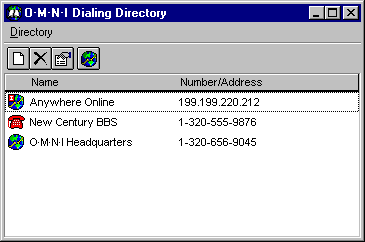
Figure 12
The O·M·N·I Dialing Directory is actually very straightforward and easy to use. Functions are accessed either from the toolbar, directly from the Directory menu, or by right clicking anywhere on the window. Each Directory menu item and its corresponding tool button (where applicable) is described below:
Tool
Button Menu Item Description

Add Add... Select this to add a
new entry to your Dialing Directory. This opens the "Add
Entry" dialog [Figure 7] where you may follow the same
procedure as when you click Add Dialing
Directory Entry during installation—described fully
under "Add Dialing Directory Entry" above.

Edit Edit Properties... Select
this to make changes to the currently selected dialing
directory item. This opens the "Edit Entry" dialog
[Figures 9, 10, and 11] where you may follow the same
procedures as described under "Add Dialing
Directory Entry " above.

Remove Remove Select this to
permanently delete the currently selected dialing
directory item, including all of the system's windows
and objects that may be presently stored on your hard
drive from previous sessions online.

Connect Connect If you wish
to dial the currently selected system directly from your
Dialing Directory, just click this menu item and O·M·N·I
Term will automatically dial and log on. (You may also
simply double-click the system's name in your dialing
directory listing!)
Install System Profile... This is a special menu option which allows you to install a system profile, or description, of the currently selected system in your listing. This is often provided by an online service as an .OSP file (for example, on a floppy disk) when they provide you with their system dial-up information.
Selecting this option opens a browse window where you
may locate and select the appropriate .OSP file. Once
installed, you may view the system profile by clicking
on the System Info button for the current system
in your "O·M·N·I Sign On" window.
Exit Closes the O·M·N·I
Dialing Directory.
Once you have added an entry to your Dialing Directory, the system name and phone number (or Internet address) is automatically added to your listing in the "O·M·N·I Dialing Directory" window—with an icon indicating the connection type. (For example, in Figure 12 above, icons for the "O·M·N·I • TCP/IP," "ANSI Text • Dial-up," and "O·M·N·I • Dial-up" connection types are represented by Anywhere Online, New Century BBS, and O·M·N·I Headquarters, respectively.) The system name—and system profile, if you were able to install it—will also appear in your "O·M·N·I Sign On" window the next time you open it.
For better viewing, you may click-and-drag the borders of your "O·M·N·I Dialing Directory" window (or just maximize it)—as well as spread the columns apart, "spread sheet" fashion, by clicking directly to the left of the Number/Address column (when the "split arrow" cursor appears) and dragging it either left or right.
Logging On to an O·M·N·I System
Once you have properly completed O·M·N·I Term setup [described completely above] you are ready to call and log on to the system(s) you have entered in your O·M·N·I Dialing Directory. (Any system you want to call must be entered into your Dialing Directory before you can log on to it.)
You'll notice that the name of every system you've entered in your Dialing Directory is also listed in the drop-down list of the "O·M·N·I Sign On" window [Figure 13]. This opens on your screen automatically whenever you run O·M·N·I Term. (If it is not open on your screen, you can access it by selecting Sign On Window under Show on the File menu on the O·M·N·I Term tool bar [Figure 5]. To view the drop-down list, click the "down" arrow.)
The "O·M·N·I Sign On" window is your primary tool for dialing, connecting, and logging on to any O·M·N·I system. The O·M·N·I sign-on process is described in detail below.
O·M·N·I Sign On
While the sign-on process may be conducted directly from your Dialing Directory at any time, the "O·M·N·I Sign On" window is a more useful and convenient tool for this, since it is also what you use to access specific information about a selected system.
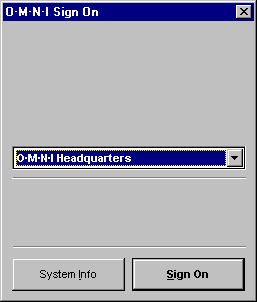
Figure 13
The "O·M·N·I Sign On" window opens on your screen automatically whenever you run O·M·N·I Term. You can also manually open it by selecting Sign On Window under Show on the File menu on the O·M·N·I Term tool bar [Figure 5].
To select a system you want to call, simply click on the "down" arrow and select it in your listing. It will immediately appear as the currently selected system in your "O·M·N·I Sign On" window. (O·M·N·I Headquarters is the system selected in the above example. You should also note that once this system has been called, its logo will be displayed as described under "System Info" [compare Figure 20] below.)
There are two different ways you can sign on to an O·M·N·I system. You can either dial in to it directly or you can connect to it over the Internet. This is strictly determined by the "connection type" you specified for the currently selected system when you entered it into your Dialing Directory [described fully under "Add Dialing Directory Entry" above].
Directly Dialing to Connect to a System
To dial directly in to any system currently selected in your "O·M·N·I Sign On" window with your modem, you must have previously selected "O·M·N·I • Dial-up" (or "ANSI Text • Dial-up") as the connection type and entered the phone number for that system when you put it into your Dialing Directory. You simply cannot directly dial a system if you selected "O·M·N·I • TCP/IP" as the connection type!
If you chose "ANSI Text • Dial-up" for the currently selected system, O·M·N·I Term will dial directly in to it but you'll see simple ANSI text screens and menus displayed instead of O·M·N·I windows. Many O·M·N·I systems offer an ANSI BBS side (but not all) and frequently use the same phone number as for the O·M·N·I windows side.
Therefore, to dial directly in to an O·M·N·I system and view it completely in Windows . . . you must have previously selected "O·M·N·I • Dial-up" as the connection type and entered the proper phone number into your Dialing Directory.
HINT: Sometimes it helps to include the connection type right after the system name when you first enter it into your Dialing Directory. For example—for the system names listed in Figure 12 above, you might have typed: "Anywhere Online (Internet)," "New Century BBS (ANSI)," and "O·M·N·I Headquarters (Dial-up)." That way you will instantly know what the connection type is when you see the system name displayed in your "O·M·N·I Sign On" window!
To sign on to any O·M·N·I "dial-up" system (or O·M·N·I ANSI BBS) using the "O·M·N·I Sign On" window in O·M·N·I Term, select the system from the drop-down menu and click the Sign On button.
If you have already established a user account with the system you are calling, a dialog box—similar to that pictured below [Figure 14]—will immediately appear on your screen to display the status and progress of your connection.
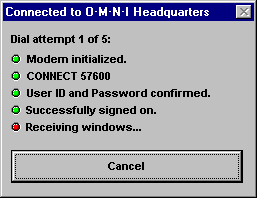
Figure 14
If you're calling the system for the very first time, your progress will be briefly interrupted after "Checking User ID and Password," and you'll be automatically prompted to establish a new user account before you can be "Successfully signed on." [See "Creating a New User Account" below for a complete description.]
Using the Internet to Connect to a System
A unique feature of O·M·N·I is its ability to accept both direct (phone) dial-up and TCP/IP (Internet) connections. What this means is that anyone who can log on to the Internet can also log on to any O·M·N·I system in the world which allows Internet access, using O·M·N·I Term. This often makes it much more economical because you can use your own local Internet connection instead of dialing long-distance!
All that is required is that you have a TCP/IP account with an Internet service provider which will let you use Windows applications to access and use the Internet. You must be able to establish a separate Internet connection before opening your O·M·N·I Term client software application.
TECHNICAL NOTE: O·M·N·I uses the standard Window's WINSOCK.DLL for TCP/IP access. This means that any connection type that is supported by WINSOCK.DLL can be used by O·M·N·I. This includes TCP/IP LANs, dial-up (SLIP/PPP) Internet access, and dedicated Internet connections (ISDN, T1, etc.).
To connect to any system currently selected in your "O·M·N·I Sign On" window over the Internet, you must have previously selected "O·M·N·I • TCP/IP" as the connection type and entered the proper IP address or domain name in the "Edit Dialing Directory Entry" dialog box of your O·M·N·I Dialing Directory [described fully under "Add Dialing Directory Entry" above]. You simply cannot connect to a system over the Internet if you selected "O·M·N·I • Dial-up" or "ANSI Text • Dial-up" as the connection type for that system!
To sign on to any O·M·N·I "Internet" system, you must first establish your Internet connection before you run O·M·N·I Term. Then, once O·M·N·I Term has opened on your screen, simply select the system you want to connect to from the drop-down menu in the "O·M·N·I Sign On" window and click the Sign On button.
HINT: You may actually connect to the Internet using any major commercial online service which supports access—such as America Online®, CompuServe®, or Prodigy®—but here also you must be logged on to the service and connected to the Internet before launching O·M·N·I Term . . . to access the system you want.
If you're connecting to the system for the very first time, a dialog box—similar to that pictured below [Figure 15]—will immediately appear on your screen to display status and progress of your connection. You'll be briefly interrupted then automatically prompted to establish a new user account (that is, have your "Account created") and be "Successfully signed on." [See "Creating a New User Account" below for complete details.]
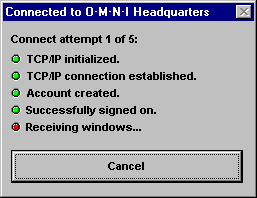
Figure 15
If you have already established a user account with the system you are connecting to, your connection status should indicate "User ID and Password confirmed" before you are "Successfully signed on."
Creating a New User Account
Whenever you log on to an O·M·N·I online information system, it will check to see if your User ID and Password are in its database and automatically prompt you with a message similar to that pictured below [Figure 16] if it cannot find them. This is what happens the very first time you connect to a system (O·M·N·I Headquarters is the system being called in this example).
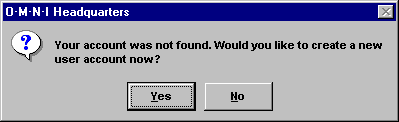
Figure 16
To create a new user account on the system you're calling, select Yes. This displays the "Create New User Account" dialog box [Figure 17] where you may enter all the required user information (Joan Q. Public has entered her user information in the example below). Selecting No will automatically disconnect you from the system.
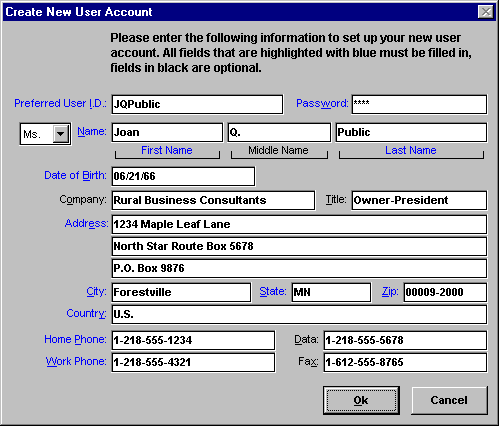
Figure 17
You must complete the information in all the spaces that are highlighted with blue text—the others are optional. When you're finished, select Ok. Your user information will then be sent to the remote O·M·N·I server and added to its user database.
A message similar to that displayed in Figure 18 below
will appear on your screen verifying your new
account with the remote system.
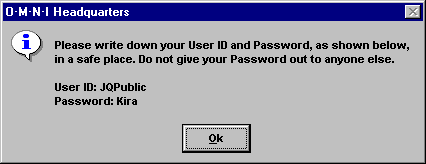
Figure 18
When you select Ok the dialog in Figure 19 below appears.
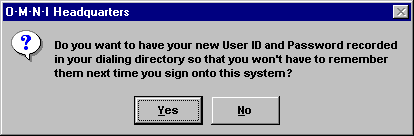
Figure 19
If you logged on to this system without having previously entered a preferred User ID and Password into your Dialing Directory's "Edit Entry" dialog box, or O·M·N·I Term "Sign On" window [see "Entering a User ID" above]—or if the User ID you did enter was not available—you may at this time select Yes to save to your Dialing Directory the User ID and Password you entered while signing on this session. If you select No, they will not be recorded (for example, for future use or reference) into your Dialing Directory for the present system.
NOTE: If you did previously
enter your User ID and Password for the present system
into your Dialing Directory [as described under "Add
Dialing Directory Entry" above] the dialog box in Figure
19 may
be
ignored . . . and you may select either
button to proceed without making any changes to
anything.
Now, by selecting either button, you will immediately enter the sign-on process and start receiving the windows and objects for the current system [explained under "Receiving Windows and Objects" below].
Whether you have recorded your present User ID and Password to your Dialing Directory or simply committed them to memory—they will now be recognized by the current system and allow you to sign on as an accepted user, whenever you use the system in the future.
Receiving Windows and Objects
Whether you use "O·M·N·I • Dial-up" or "O·M·N·I • TCPIP" to connect to a system—O·M·N·I Term will proceed to receive windows and objects from the remote server once you have "Successfully signed on."
The windows being sent are what you will actually see and "move around in" on the system (often called the "interface") once you're online. The objects are individual pictures, graphics, documents, or even sounds that make up certain "changeable" parts of a window—or which may occur when you click a certain button (or some other command) on a window—while you're online.
This transfer process may take a few minutes, depending on how many windows and objects are being sent, and also what kind of modem and computer you're using. A percentage bar will appear on your O·M·N·I Term tool bar [Figure 20] indicating its progress.

Figure 20
The reason for this wait at the end of O·M·N·I sign-on is that it speeds up communications considerably once you're online. And usually you really only have to wait the first time you log on to an O·M·N·I system because most of the windows are sent only once—and stored on your computer for future use—so only their changes (if any) are sent the next time you log on. The windows—which, among other things, actually define the specific "areas" of an online system—are accessed two different ways in O·M·N·I. This is explained more completely below:
Temporary Windows
These are windows which are accessed directly from the remote O·M·N·I server once you're already online. That is, when you click a button (or some other command) the server sends the window over the phone line at that moment, and a percentage bar appears on your O·M·N·I Term tool bar indicating its progress at that time.
These are called temporary windows because they often have "temporary" contents—such as news headlines or system messages—which the system administrator may change very frequently and, so, decides that they should be stored on the server instead of on your computer.
Because temporary windows may be changed frequently, they are not sent at the end of O·M·N·I sign-on, as described above. They are only sent at the precise moment you click the command to access them once you're online. You must wait for the server to send a temporary window each individual time you access it, whether the information on the window has been changed or not.
Permanent Windows
These are the windows which are sent at the end of O·M·N·I sign-on, as described above. They are called permanent windows because they generally tend to have more "permanent" contents—such as main menu items or other standard system and user information—which the system administrator may not be inclined to change very often.
These windows also tend to be the ones which get used most frequently on a system—and they are often larger—which means that if one must be sent by the remote server every time you click a button for it, you might wind up spending a lot of valuable time online just watching the percentage bar.
Therefore—since it is usually speedier, and more convenient, to open windows directly from your computer's hard drive, the system administrator may choose to send those windows which get the most repeated use to be stored there for faster access. This significantly reduces the amount of information that has to be sent over the phone lines to your computer each time you click a button to open a window when you're logged on to the system. (More specifically, only the temporary windows you access online will be sent!)
Also, if any changes are made to a permanent window since the last time you logged on to a system . . . only those changes (in the form of individual objects) will be sent at O·M·N·I sign-on the next time you visit. This process automatically deletes any unused windows and objects and updates the permanent windows and objects on your computer which have changed—so you'll see the changes immediately once you're online.
Since the bulk of a system's permanent windows and objects are usually sent the very first time you call, you usually don't have to wait but a few moments to receive the updates on future visits. This, of course, will be determined entirely by the number of changes that have actually been made to the system (including any new windows) since your last visit.
Permanent Forums
There is yet one more option available to the administrator of the system you want to call for making your online experience more enjoyable. If there are certain areas, or "forums," on the online service which are of interest to only a percentage of users, there is not really any need for every user of the system to receive all the windows and objects of that area during the initial "permanent window" download.
But on the other hand—if the forum is somewhat large, it does not help to have the windows and objects sent every single time an interested user wants to access them (for instance, as a "temporary window" download). In order to circumvent this problem, the system administrator will often set up such a forum so that all its windows and objects will be sent permanently to the user only when they first decide to enter the forum. Even with that, there is usually just a short wait—and the next time the user enters the forum, they will only have to wait for the changes to that area (if any) since the last time they visited!
Reset Cache
The tradeoff for the extra speed and convenience you gain by receiving a system's permanent windows is the extra space that must be used on your computer's hard drive to store them. One way that O·M·N·I minimizes this space is by keeping the windows and objects in a compressed state inside a special storage place on your computer called a cache. This is all done automatically when you receive them. A permanent window will then instantly decompress for you whenever you access it (for example, by clicking a button to enter an area) when "online."
You can also conserve space by simply getting rid of the permanent windows and objects for those systems which you call less frequently. This can be done by selecting the system in your O·M·N·I Dialing Directory listing and selecting Edit Properties... from the Directory menu (also accessed by right clicking anywhere on the window). This opens the "Edit Entry" dialog box [Figures 8, 9, and 10]. To permanently delete all the windows and objects for the currently selected system from your cache, click the Reset Cache button.
Should you ever decide to call and log on to the system again, you will simply have to receive all its permanent windows and objects over again.
System Info
When you receive the permanent windows and objects from an O·M·N·I online information system—for example, the first time you sign on [see "Receiving Windows and Objects" above]—you also often receive specific information about the system which you may access at your leisure offline using the "O·M·N·I Sign On" window.
In this case, the system's logo will appear automatically in the top panel of the window whenever you click the "down" arrow and select its name from the drop-down menu, as demonstrated for the O·M·N·I Headquarters system pictured below [Figure 21].
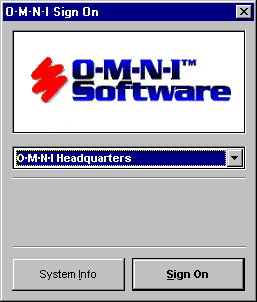
Figure 21
You can also access specific information about the system, which may have also been provided, by clicking the System Info button at the bottom of the "O·M·N·I Sign On" window. This opens the "System Information" dialog box [Figure 22] where you may view the system logo, the system administrator's name, and often a detailed description of the system you have selected (the system description for O·M·N·I Headquarters is displayed below).
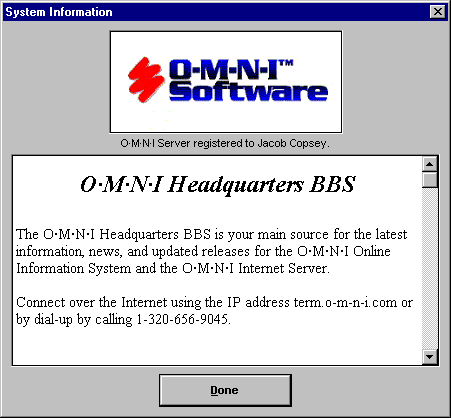
Figure 22
This can provide valuable information and sometimes makes it much easier to keep track of some of the systems you have listed in your Dialing Directory, if you happen to have many of them. When you're finished viewing the system information, simply click Done to return to the "O·M·N·I Sign On" window.
Modem Status
Whenever you are connected to a remote O·M·N·I system, you may check the status of your connection by selecting Modem Status under Show on the File menu. The "Modem Status" dialog box appears, displaying Bytes Sent, Bytes Received, and Transfer Errors Corrected . . . which may assist you at times in determining, for instance, whether or not your dial-up or Internet connection is good.
NOTE: Many experienced users often reboot their computer, restart their modem, and try to reconnect if they suspect that they have received a faulty, or slow, modem connection through their local phone service or Internet Service Provider.)
Getting Around Online
Once you've established a new user account with an O·M·N·I system, finished the sign-on process, and received its permanent windows and objects . . . the first thing you will usually see once you're logged on is the system's main "startup" window. From there you will be able to access a variety of windows and online "areas."
No two O·M·N·I systems are identical, so you may expect a great variety of styles and interests between one system and another. Still, most systems use the basic components of online/BBS communications in general. Following is a more expanded description
of these components—as they pertain to O·M·N·I—to help you get around more readily online:
Menus
A menu is simply a window that offers you choices—usually in the form of icons or buttons—which enable you to tell the system to perform some kind of action, such as go to another area or exit the system. Most systems offer a main menu such as that displayed for Brimson Online below [Figure 23]. In most cases, you need only click on the desired button or icon to carry out the menu command.
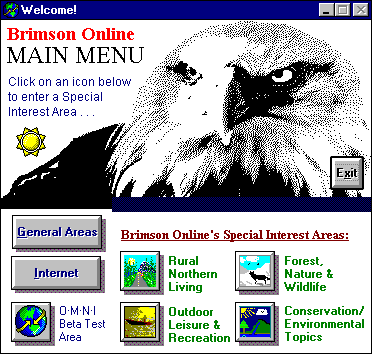
Figure 23
HINT: Some menus have hidden "hot spots"—for instance, inside a picture or on a graphic—which, if you can find them, often take you to very interesting places. For example, if you happen to come to a window on a system that has no buttons (and you can't seem to go anywhere) . . . just try clicking around a little bit on any "suspicious" looking spots on the current window with your mouse. You might be surprised what happens!
Forums
A forum is a place you can go on a system to find information or share ideas with others on a topic, usually of common interest. A forum might consist of just a single message board [see "Message Boards" section below] or it might be expanded to include other online components—such as the File Area, Photo Gallery, and Chat in the example [Figure 24] below.
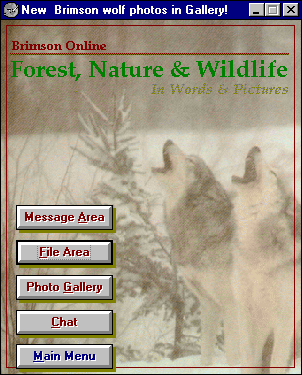
Figure 24
(You may notice, too, in this example that it is also a menu . . . for the Brimson Online "Forest, Nature & Wildlife" forum.)
Message Boards
A message board is a window, or series of windows, which allows you to access public messages posted by others (for example, in a particular forum) on the system. The actual type and content of messages may vary greatly, but they are generally organized by areas of common interest. Usually you may also compose and post your own messages to a message board (but not always).
On most O·M·N·I systems messages are categorized by topic, often with additional subtopics, and displayed in a "tree" structure listing. To access the actual messages under a particular topic (or subtopic) simply double-click on the topic heading. This will display a listing of all the current messages by subject (including author and date). To read a message, simply click on the specific subject in the listing and its contents will be displayed.
File Areas
A file area is a window, or series of windows, which allows you to access and download certain computer files stored on the system. Only those files which are actually designated by the system administrator to be listed in the file area may ever be accessed by someone logged on to the system! On most systems you are allowed to download the files listed in a file area directly to your computer. On other systems you may only be allowed to view their contents . . . without actually being able to download them.
Like message boards—the files in a file area are generally organized by topics of common interest, often with additional subtopics, in a "tree" structure listing. To display the list of files under a particular topic (or subtopic) simply double-click on the topic heading. To preview or download a file, select its file name in the listing and observe the procedures described below:
Previewing Files (before Downloading)
You may usually view a simple text description of a file, if it's available, by clicking a "view" button on the file listing window. The contents of ZIP files and various image files—such as GIF and JPEG—may also be previewed by clicking on a "preview" button, if it's provided on the system you're calling.
This is often very convenient if you're not sure whether or not to download a specific file. And the transfer time of a "thumbnail" image file preview is generally much faster than completely downloading the file itself. (You may also adjust the transfer speed of a thumbnail preview, if you want . . . as described below.)
Setting the Size, Quality (and Speed) of
Thumbnail Previews
For added convenience, you may set the size and quality of any image file thumbnail you want to preview (which will also determine the speed at which it is transferred to your terminal for viewing!) by selecting Preferences... under Options on the File menu located on the O·M·N·I Term tool bar [Figure 5]. This will display the dialog box pictured below [Figure 25] where you may make the desired settings on the "Thumbnail" tab. You may do this while you're online.
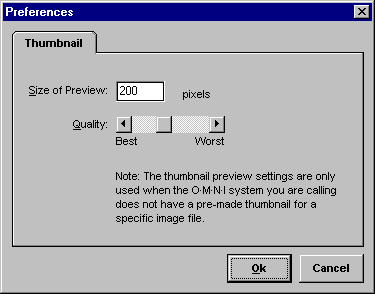
Figure 25
As a general rule, the lower you set the Quality (toward "Worst") and the smaller you set the Size of Preview, the faster the transfer of the thumbnail to your computer will be. Similarly, if you want a larger preview with better quality for viewing, the slower the transfer will be. However, these settings will not take affect if the O·M·N·I system you are connected to uses its own existing thumbnails.
Downloading/Uploading Files
Most systems (but not all) will generally provide buttons
to download and/or upload files you've selected. In either
case, multiple files may be selected for transfer in the
sequence you order them—and the progress of their transfer
will be displayed in a small movable window on your
screen, like that pictured below [Figure 26].
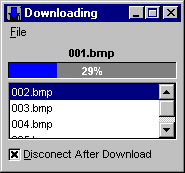
Figure 26
In the present example, the file 001.BMP is currently
being downloaded—and the file 002.BMP is the next in line
on the list. At any time you may change the order of the
download/upload sequence or cancel any (or all)
files on the list by choosing from the following options
under the window's File menu:
Move Up Moves the
currently selected file up in the order of files
that are listed to be downloaded or uploaded.
Move Down Moves the
currently selected file down in the order of
files that are listed to be downloaded or uploaded.
Remove Selected File
Removes the currently selected file from the list of
files to be downloaded or uploaded.
Cancel Current File
Cancels the current file being downloaded or uploaded
and proceeds to the next file (if any) in your list.
Cancel All Files Cancels
all the files listed to be downloaded or uploaded,
including the current one.
You can also have your O·M·N·I Term disconnect automatically once all the files have been downloaded by simply checking the Disconnect After Download box on the window (this similarly applies to uploading). But remember that if you're using a TCP/IP (Internet) connection, you must disconnect from your Internet service provider yourself!

Open File: Using the O·M·N·I File Viewer
A special feature of your O·M·N·I Term client software program is its built-in file viewing utility, which allows you to browse and open files on your computer in a variety of different formats (even when you're offline). You can view image and video files, read a text or RTF document, or play sound files all from one place in the O·M·N·I Term—in fact, it will even open a ZIP file and decompress it for you!
The popular file formats that are supported include:
- Bitmap (*.bmp)
- CompuServe GIF (*.gif)
- JPEG (*.jpg)
- Lead CMP (*.cmp)
- MIDI Song (*.mid)
- Photo CD (*.pcd)
- Rich Text (*.rtf)
- Targa (*.tga)
- Text (*.txt)
- Tiff (*.tif)
- Video for Windows (*.avi)
- Wave Sound (*.wav)
- Zip Archive (*.zip)
To use the O·M·N·I file viewer, select Open File... from the File menu (or just click the "Open File" icon) on the O·M·N·I Term tool bar [Figure 5]. When the "Open file" dialog box is displayed, select the format of the file you wish to open from the List files of type drop-down list. Next simply browse, select the file, then press OK. The proper viewer will automatically open for the file you've selected.
Chat/Teleconferencing
Many O·M·N·I systems offer a chat lobby, usually accessed by a "Chat" button, which lets you participate in live, real-time conversations with other users who are logged on to the system at the same time as you! In some circumstances you may also have the option of using a prearranged private room to chat with select users or to participate in a simultaneous "teleconference" with many callers at once.
O·M·N·I handles chat/teleconferencing very much like a major commercial online service; you may enter the main "public" chat lobby or some other room on the system (that was previously created)—or you can create a room yourself and invite other users to join you. In O·M·N·I chat, you may even "whisper" privately to selected users in the same room or privately "page" another user who is currently logged on to the system.
How to Chat
Conducting chat/teleconferencing in O·M·N·I is very simple. When you enter a chat room, the screen name of everyone presently in the room is listed inside the left pane of the window. Chat entries appear in the right pane of the window in the sequence they are sent. You will pick up the present conversation at the point when you entered the room.
To add your own chat entry, simply type what you want to say inside the space at the bottom of the "chat" window and . . . HIT YOUR "ENTER" KEY.
How to "Whisper" Privately to Someone
You may whisper privately to anyone in the same room without anyone else seeing what you are saying! Simply select the user's name in the chat list and check the Whispering box in the bottom-left corner of the window (or select Whispering on the Chat menu). Anything you type will now only be seen by the selected user.
HINT: Hold down your "Ctrl" key and click with your mouse, if you wish to select multiple users from the chat list for whispering!
To stop whispering, uncheck the Whispering box (or deselect Whispering on the Chat menu). You will be returned to the regular chat session.
Managing Your Chat Session
You may select from a number of options which will help you manage and control chat in O·M·N·I . . .
If you wish to be notified when a new user has entered the current chat room, check Show User Entering Message on the Chat menu. Similarly, if you wish to be notified when a person is leaving, check Show User Leaving Message.
If you want to set certain preferences for specific users—such as highlight their name with a certain color, hear a beep whenever they add an entry, or even stop their entries from appearing on your screen—select their name(s) in the chat list and make the proper settings in the "Chat User Options" dialog box, which may be accessed by selecting User Options... from the Chat menu.
With your mouse, you can highlight any portion of text from a chat session and copy it (for example, to another application) by selecting Copy Selected Chat from the Chat menu . . . or you can use the following standard keyboard commands:
Copy = Ctrl + C (or Ctrl + Insert)
Paste = Ctrl + V (or Shift + Insert)
To clear all the current entries from your chat window
(on your end only), select Clear Chat from the Chat
menu.
Entering and Creating Rooms
To enter any chat room on the system—or to create a new room—open the "Chat Rooms" dialog box by selecting Rooms on the "chat" window's Chat menu. In this dialog are listed all the rooms presently available on the current system—including system administrator-created rooms, user-created public rooms, and private rooms (private rooms are chat rooms which may be kept private from other users, but not from the system administrator!).
To enter any room, simply highlight it in the current
listing and select Join Room. You can also add a
new public room by pressing the New Room
button and entering the new room's name. In the same
manner, you may add a new private room by pressing the Private
Room button and typing in the desired room name. (If there
is already a private room with the name you enter, you
will automatically be taken to that room.)
Finding and Paging Users Online
Paging is a highly useful communications tool which functions very much like "Instant Message" in the larger commercial online services, where you may initiate a private conversation with someone else online. To page any user online, first select Page User... from the Chat menu. This will display a dialog box listing all "Users Currently Online."
HINT: If the system you're connected to provides fairly convenient access to Chat, you may use this tool at any time simply to see who is currently online!
To page a user, select their name on the list and press the Page Selected User button. In the "paging" window that pops up, enter the message you want to send and hit your "Enter" key (or press Send). Your message will instantly appear in the top display area of the window. The user can then respond to you using the "paging" window which instantly pops up on their screen when you first contact them in this manner
If you wish to clear the entries in your "page" window (on your end only), just press the Clear button.
If you wish to initiate a private conversation with someone who is presently in the same chat room as you, click on their name in the chat list and select Page Selected User... from the "chat" window's Chat menu.

Using the O·M·N·I E-mail Center
Electronic mail, or simply "e-mail," is a message that you can send electronically across a network (between two or more computers) to a single or several recipients. With your O·M·N·I Term, you can send and receive e-mail over any O·M·N·I online information system in the world. O·M·N·I also lets you read and compose e-mail offline, and you can send and receive multiple file attachments even while you're working in another application. (If you want, you can even make the O·M·N·I Term disconnect automatically when you're done!)
All e-mail in your O·M·N·I Term client software application is handled in the O·M·N·I E-mail Center. This is accessed by selecting E-mail Center under Show on the File menu (or just click the "E-mail Center" icon) on the O·M·N·I Term tool bar [Figure 5]. How you read, organize, compose, and reply to e-mail is discussed in complete detail below.
Checking and Retrieving E-mail
At any time that you're connected and logged on to an O·M·N·I system, you can check for any e-mail messages that are addressed to you (or, rather, your current User ID) on the present system by selecting Check For E-mail under the File menu in the "O·M·N·I E-mail Center" window.
If you do not have any e-mail messages waiting, a dialog box will pop up telling you so. If you do have e-mail waiting, a dialog will pop up that says: "You have an e-mail message waiting. Do you want to get it now?"
If you select Yes, a small dialog will instantly appear indicating that your e-mail is being downloaded, with the number of messages listed. Once your e-mail has been received, your E-mail Center will open automatically with the new message(s) in it. If you select No, your e-mail will remain on the present system until you retrieve it.
Normally, however, whenever you have e-mail waiting for you on an O·M·N·I system that you're calling, you will be automatically prompted with the "e-mail message waiting" pop-up dialog . . . the moment you're logged on!
Reading, Editing, and Saving E-mail Messages
In O·M·N·I you always have the option of reading e-mail either online (while you're connected to the system) or offline (when you're disconnected from the system).
To read an e-mail message, click on the "Incoming" folder (file icon) located in the left pane of the "O·M·N·I E-mail Center" window and select the message where it is listed in the right pane of the window. You may either double-click the message to read it—or right-click on it and select Open Message from the menu (also accessed by clicking on the O·M·N·I E-mail Center's Message menu).
This opens the "read" window, with the name of the sender and the subject of the message displayed on the title bar. Here you may read the e-mail message, as well as edit the contents of the subject and message (which is often very useful when you wish to save only the most important parts of a message!).
When editing the current message or subject, you may also copy, cut, and paste highlighted section(s) of text to other applications using the following keyboard commands:
Copy = Ctrl + C (or Ctrl + Insert)
Cut = Ctrl + X (or Shift + Delete)
Paste = Ctrl + V (or Shift + Insert)
You may also change the format of the current message by selecting from the various options listed under the "read" window's Format menu.
To save any changes to the current message, simply click the Save button (or select Save E-mail under the File menu) on the "read" window, and it will be automatically saved to the current folder. You may also print any message currently displayed in the "read" window by selecting Print... from the File menu. (For convenience, you may also access Printer Setup... from this menu.)
Replying to E-mail
To reply to the currently selected e-mail message from the "O·M·N·I E-mail Center" window, select Reply from the Message menu. This will display the "Compose E-mail Message" window, with the original message quoted for you and the proper information already entered for the system, subject, and addressee.
HINT: You may actually select multiple messages and an individual reply window will open for each message!
Here you may compose and send your reply in the same manner as described in the next section below. (Also, the "read" window will close automatically if you have checked "Close read window when forwarding or replying" under the Read tab in the "E-mail Preferences" dialog box—which is accessed by selecting Preferences... under the O·M·N·I E-mail Center's Options menu.)
You may also reply to an individual message directly from the "read" window by selecting Reply from its File menu.
Composing and Sending E-mail
Just as with reading e-mail—in O·M·N·I you can compose e-mail either online or offline. To compose an e-mail message, select Compose New from the Message menu in the "O·M·N·I E-mail Center" window (also accessed by right-clicking anywhere on the right pane of the window). This displays the "Compose E-mail" window—pictured below [Figure 27] with a sample e-mail message already entered and ready to send.
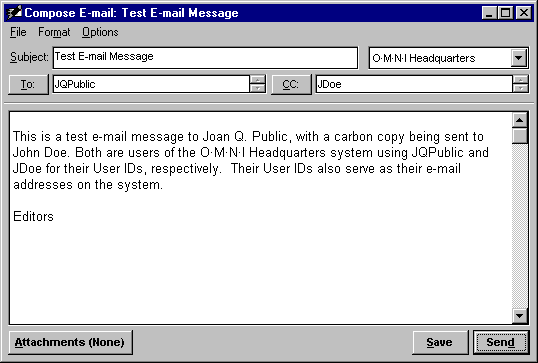
Figure 27
You may perform the following steps to compose, save, edit, and send e-mail messages using the "Compose E-mail Message" window in the O·M·N·I E-mail Center:
1. First, be sure to select the proper system where you want the current message to be delivered. This is done by clicking the "down" arrow (near the top-right corner of the window) and selecting the system from drop-down list. You'll notice that every system listed in your O·M·N·I Dialing Directory is also conveniently listed here!
2. In order for your message to be properly delivered, the recipient(s) of your e-mail message must have a user account already established on the system you've selected, and you must enter their User ID into the To space (and the CC space if you wish to send a "carbon copy" of the message to someone else on the system) exactly as it exists on the system you're calling. This information is usually made available by the person(s) to whom you wish to send e-mail.
3. Next enter an appropriate message subject into the Subject space. Remember, the subject you enter here is exactly what appears in the e-mail listing of the recipient's own E-mail Center, so it helps if it is made very clear what the subject of your current message is inside this space.
4. Now compose your actual message inside the lower pane of the "Compose E-mail" window. You may use the same copy, cut, and paste keyboard commands as for the "read" window (described in the previous section above). You'll also notice that the same format options are available under this window's Format menu.
Similarly, you may save the current message to the "Outgoing" folder (for example, to edit later) by clicking the Save button—or by selecting Save E-mail under the File menu. You may also print the current message by selecting Print... from the File menu, and you may also access Printer Setup... from this menu.
5. You may attach any files to the current e-mail message by clicking the Attachments button—or by selecting File Attachments... under the File menu. This displays the "Attach Files" dialog box where you may browse for the files you want to send. To attach a file to the current message, simply find it, select it, and press the Add button. The name of the file and its location on your computer (its "path") will immediately be listed under List of File Attachments.
You may add as many attachments to the current message as you want in this manner. If you want to remove any from the List of File Attachments, simply select the file(s) you want and press the Remove button. Similarly, if you wish to remove all the files from the list, just press the Clear List button.
When you're finished, press the Ok button. You will be returned to the "Compose E-mail Message" window where you should now see the actual number of attachments displayed right on the Attachments button.
HINT: Once you have selected the files you want attached to the current e-mail message, do not move them from their present location on your computer until you've actually sent the message. If you do, they won't be where O·M·N·I is supposed to find them and they won't be sent.
6. To send any e-mail message you've composed (or edited) you must first be connected to the system where you want it sent, with the current message selected and displayed in the "Compose E-mail Window." (You must make sure that the proper system is selected for the current message—as described under the first step above—or it simply won't be sent.)
To send . . . simply press the Send button. The e-mail message and its attachments (if any) will then be sent to the mailbox of the addressee on the current system, and they will be notified that a message is waiting for them the next time they log on (in the same manner as described under "Checking and Retrieving E-mail" above).
If you are not presently connected to the system where you want to send the message (or if you do not have the current system properly selected!) . . . it will be automatically saved to your "Outgoing" folder, and a pop-up dialog will be displayed which says: "The message will be sent the next time you connect to [currently selected system]."
Various advanced options for composing and sending e-mail
are also available under the Compose tab in the
"E-mail Preferences" dialog box—which is accessed by
selecting Preferences... under the O·M·N·I E-mail
Center's Options menu (but is recommended for
experienced users only).
Keeping Your E-mail Organized
Any e-mail that you receive when you log on to an O·M·N·I online information system is automatically saved to the "Incoming" folder in your O·M·N·I E-mail Center. All the messages listed in this folder have a small "envelope" icon in front of them. If there are any file attachments, a small "disk" icon will also appear next to it. To help you keep track of your messages, new (unread) messages are marked in red. After you open and read one, the icon changes automatically to white.
Similarly, any e-mail that you compose is saved to your "Outgoing" folder in the "O·M·N·I E-mail Center" window, with icons in front of the listed messages. New messages to send are marked in red. Messages which have been composed and simply saved (for example, to edit and send later) are marked in gray. Once a message has actually been sent, the "envelope" icon changes automatically to white.
In the message listing for any folder in your O·M·N·I E-mail Center, you may manually mark a message "red" or "white" by right-clicking on it and selecting Mark As New or Mark As Read under Status on the menu that appears. You may specify what information you actually want displayed for messages in your current listing by checking or unchecking the options found under Display on this menu (also accessed by clicking on the Message menu). You may also arrange the order, or organization, of messages in a folder's listing by checking or unchecking the options found under Sort.
HINT: You can actually set all sorting options without opening the menu. For instance, you can set ascending or descending order by clicking the "arrow" icon in the top-left corner of your message listing . . . and you can even sort for an individual column by clicking on the header for that column above your listing!
For even better organization, you can create a new folder under any existing one by selecting New under Folder on the File menu. You may also Rename or Delete a folder you've created—but not any of the existing ones—at any time from this menu. Your folders will be displayed in a normal tree structure if "Show tree view of e-mail folders" is checked under the General tab in the "E-mail Preferences" dialog box (accessed by selecting Preferences... under the O·M·N·I E-mail Center's Options menu).
If you wish to move a message to another folder, right-click on it and select Move... from the menu that appears (also displayed by clicking on the Message menu). When the "Move E-mail" dialog is displayed, select the folder where you want the message moved and simply click the Move button.
Similarly, if you wish to delete a message from a folder's listing, right-click on it and select Delete from the menu that appears. The message will automatically be sent to your "Deleted" folder if "Keep deleted e-mail for undelete" is checked under the General tab in the "E-mail Preferences" dialog box. If this option is not checked, the message will be permanently deleted from your O·M·N·I E-mail Center. In any event, messages are always permanently delete when you delete them from your "Deleted" folder.
Disconnecting from an O·M·N·I System
You may disconnect from an O·M·N·I online information system at any time by selecting Disconnect from the File menu on the O·M·N·I Term tool bar [Figure 5]. But remember that if you're using a TCP/IP (Internet) connection, you must also disconnect from your Internet service provider yourself!
*