O·M·N·I User's Manual #5
Using the O·M·N·I™ ANSI System Editor
FOR
WINDOWS
CONTENTS

5.1 The ANSI System Editor
The ANSI System Editor is a simple and intuitive ANSI BBS editing utility that provides you with the necessary tools to create the ANSI side of your O·M·N·I Online Information System. It will allow you to generate the screens and menus you need to service users without Microsoft® Windows, IBM compatibles, or high-speed modems typically needed to access a Windows-based online system. It is also where ANSI callers can connect to your system for the first time to download O·M·N·I Term [please refer to Figure 5-C], and includes support for chatting from an ANSI connection.
The ANSI System Editor has been designed for ease of use and maximum understandability. It features a simple user interface and fast editing tools! It is installed during normal installation of your O·M·N·I Online Information System software.
During installation, you have the option of including a sample ANSI system—which includes predesigned menu(s) that you may actually incorporate into your ANSI system or simply use as templates for designing new ones. If you're installing O·M·N·I for the first time—or you're unfamiliar with ANSI editing tools—it is recommended that you install the sample ANSI system and fully explore it to better familiarize yourself with the ANSI System Editor. The dialog box pictured below [Figure 5-A] pops up automatically during installation for selecting this option.
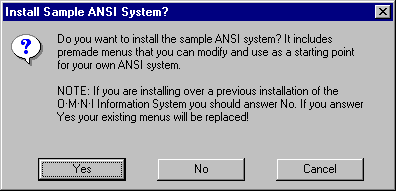
Figure 5-A
WARNING: If you're simply reinstalling O·M·N·I or upgrading a version that already exists on your system, you should select No. If you select Yes, your existing menus will all be overwritten!
5.1.1 Creating Menus
Once O·M·N·I is properly installed, you may open the ANSI System Editor by selecting the appropriate icon in the "O·M·N·I Information System" program group in your Windows 3.x Program Manager. The "O·M·N·I ANSI System Editor" dialog [Figure 5-B] will immediately appear on your screen.
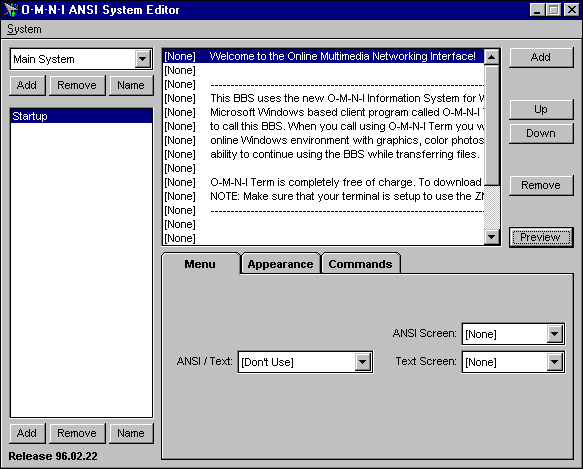
Figure 5-B
All the tools you need to create the screens and menus for your ANSI system are available here. You may proceed by following the simple procedures described below.
NOTE: If you did not choose to install the sample ANSI system, only an empty pane will appear on the left side of the dialog—in which case, you should first create a menu group and at least one menu [as described below] before you may view the rest of the dialog.
5.1.1.1 Menu Groups
Before you can create or edit a menu, you must first create a menu group, which is your primary organizational tool in the ANSI System Editor. You may create as many menu groups as you wish for the efficient management of your ANSI menus.
You create a menu group by selecting the Add button and typing the name of the new group into the text field in the pop-up dialog box that appears. Enter any alpha-numeric description up to 50 characters long—using no punctuation. You may delete a menu group at any time by selecting the Remove button. You will be prompted as to whether or not you want to permanently delete the entire menu group.
NOTE:
If you change the name of an existing menu group that
is referenced in a menu item Action [see section
5.2.4.2-C—"Item Commands Tab" below] you must
also be sure to redirect each of the
Item Commands
to point to the newly named menu group.
5.1.1.2 Menus
Menus are the actual screens—made up of one or more menu items [see section 5.2.2] and organized within menu groups—that are displayed to your callers. You create a menu by selecting the Add button at the bottom of the "O·M·N·I ANSI System Editor" dialog [Figure 5-B] and typing a descriptive name in the "Add Menu" dialog box that pops up. You may delete a menu at any time by selecting the Remove button.
WARNING: If you choose the Remove button to delete an ANSI menu, you will not be prompted for confirmation before it is permanently deleted!
If you wish to rename a menu, simply select the Name
button and enter new descriptive name in the dialog that
pops up.
NOTE:
If you change the name of an existing menu that is
referenced in a menu item Action [see section
5.2.4.2-C—"Item Commands Tab" below] you must also be
sure and redirect each of the
Item Commands
to point to the newly named menu.
5.1.2 Editing ANSI Menus
Menu items are the individual building blocks that make up an ANSI menu (screen). To create and edit an ANSI menu, you must enter individual menu items which make up the screen. Menu item editing takes place in the main editing field in the middle of the "O·M·N·I ANSI System Editor" dialog box using options from the tab section below it.
5.1.2.1 Menu Item Editing
To create a new menu item, simply select the Add button on the right side of the "O·M·N·I ANSI System Editor" dialog and a blank line will be added.
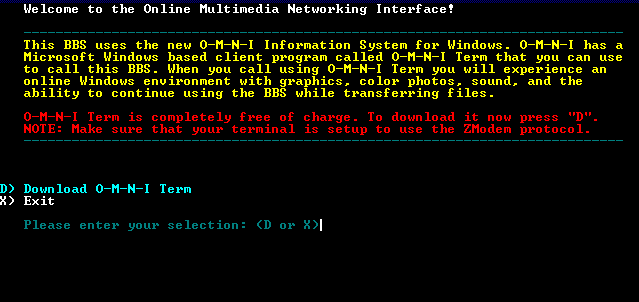
Figure 5-C
This "Welcome" screen is what users will see when they call your system with ANSI and the predesigned menu in Figure 5-B above has been specified (and you "Allow ANSI Connects" in your communications setup). Each line on this screen represents an individual menu item. You may edit each menu item as you wish—or create an entirely new "Welcome" screen for your own purposes. By specifying the "Download O-M-N-I Term" command, ANSI callers will be able to automatically download O·M·N·I Term (the OMNITERM.EXE file) directly from your system using any standard modem or comm program!
As you enter each menu item, you will have an item-by-item (line-by-line) regular text view of each one. Items can be added, removed or rearranged to your exact specifications. Select the Up or Down buttons to move the desired item up or down, respectively, one line at a time. When you select Remove the currently highlighted menu item will be instantly deleted.
WARNING: If you choose the Remove button, you will not be prompted for confirmation before deletion of the menu item!
You may also preview a menu in ANSI to see how it will actually appear to an ANSI caller. To do so, simply select the Preview button and the current menu.will be displayed. [Compare Figure 5-C with the edited menu displayed in Figure 5-B above.] To leave the ANSI screen preview, press any key on the keyboard or click your mouse anywhere on the screen.
NOTE:
The ANSI preview is a non-functional "picture" of the
menu. Thus, you will not be able to test menu item
commands from within this preview.
5.1.2.2 Menu Item Tab Section
This section is tabulated into three basic editing areas [see Figure 5-B]. Each tab contains menu item editing and customization tools specific to a particular function or purpose. It is within these tabs that you will allocate any custom ANSI and/or text screens for the current menu, as well as edit the menu item's appearance and set the menu item's internal commands. Each tab is described below in detail.
This tab allows you to add custom ANSI or text screens to your menu. Before you can add a custom ANSI or text screen, however, you must first have it located in your \ANSI subdirectory. Options include:
ANSI/Text: Using the ANSI/Text drop-down field,
you may choose where the screen will be displayed, your
options being: "[Don't Use]" (the default), "Display
Screen Only," "Display Before Menu," and "Display After
Menu."
ANSI Screen: Allows you to select from the
drop-down list which custom ANSI screen you would like
to have displayed.
Text Screen: Allows you to select from the
drop-down list which custom Text screen you would like
to have displayed.
This tab [Figure 5-D below] is where you can assign a keystroke to activate a menu item, enter the menu items' caption text, and/or set the colors of the current menu item.
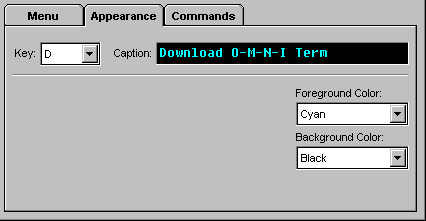
Figure 5-D
Key: Here you may choose the actual keystroke
that users will type in order to carry out the selected
menu items' internal command. The chosen key will be
displayed to the left of the menu item caption.
All currently supported keys are listed in the Key
drop-down field; simply scroll through and select the
one you want.
Caption: This is where you enter the line of
text that will become the current "menu item." You may
enter any text that you want displayed in the menu
simply by typing it into the Caption field. The maximum
length for any single caption line is 80 characters,
after which you must add a new line (menu item) [see
section 5.1.2.1—"Menu Item Editing"—above].
Foreground Color: You can assign one of several
foreground colors to each menu item's caption text by
selecting the desired color from the Foreground Color
drop-down field. This will display a list of all the
ANSI colors available. Simply choose the color you want
for the current menu item.
Background Color: [Functions the same as
"Foreground Color" above.]
This tab is where you set the internal command that will be executed when a user types the corresponding key for the current menu item. The appropriate commands are selected from the Action drop-down list—whose options include:
Display Menu: Displays the ANSI menu as defined
by the Group and Menu drop-down fields [see "Group/Menu"
below]. You may assign this command to a blank menu item
line, so that when the computer gets to that line, it
will display the assigned menu.
Log-off/Hangup: Tells the Server to disconnect
the user from the system.
Download OMNITERM.EXE: Automatically sends
OMNITERM.EXE to the user.
Get User ID & Password: Set this action for
the second-to-last line on an ANSI menu and make the
last line a "Display Menu" action. When the user enters
a valid User ID and Password, the menu specified on the
last line will be displayed.
Enter Chat Lobby: Allows a user to enter the
main chat lobby lobby on the system. ANSI system chat is
fully compatible with O·M·N·I system chat, enabling
users connected on either side to communicate with each
other simultaneously.
5.2.3 Startup Menu
The "Startup Menu" is the first ANSI menu your callers
will see when they connect to your ANSI system. You may
specify any one of your ANSI menus as the "Startup Menu"
by selecting System
from the menu bar and choosing Startup
Menu.
Select the desired menu group and menu from the
appropriate drop-down fields on the pop-up dialog box that
appears.
IMPORTANT: You must select
Allow ANSI Connects
in the
"O·M·N·I Server Node Setup"
dialog box
[see Section 3.1.1—"Node Setup"—O·M·N·I User's Manual
#3]
in order to allow ANSI callers to connect to your ANSI
system.
*